Changing Mileage Rate
The new mileage rates can be updated in each school side of your Edupay site,
under setup --> expenses.
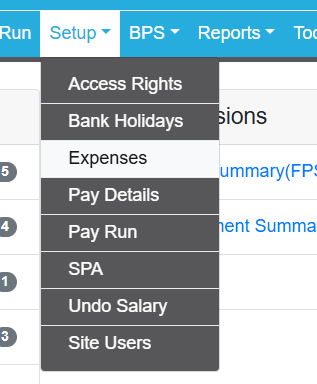 Within the expenses list you should see all the elements alongside an edit button, in here you can amend the new rate for Mileage (under 10,000) to 0.55.
Then repeat this step for all of your schools.

Calculating and Inputting Backpay
To calculate the necessary adjustments you can download the expenses report into excel, then divide the 'Expenses paid' column by 0.45 then multiply by 0.55, the difference between the new and orginal figure is the backpay.
For example: Employee A submitted £105.75 of mileage claims / 0.45 x 0.55 = 129.25
(Backpay Owed: 129.25-105.75= £23.50)
The backpay can then be added in the pay elements tab in the employees profile, click the green "add income" button and find "Mileage (Backpay)".
(NOTE: This element is none taxable , none nicable and none pensionable)
Was this article helpful?
That’s Great!
Thank you for your feedback
Sorry! We couldn't be helpful
Thank you for your feedback
Feedback sent
We appreciate your effort and will try to fix the article