Standard Hourly Rate:
To view the employees’ standard hourly rate, go to the employee’s record, click the Job Roles tab, and click edit against the relevant job role.
Then go to the Timesheet tab where you will see the hourly rate:
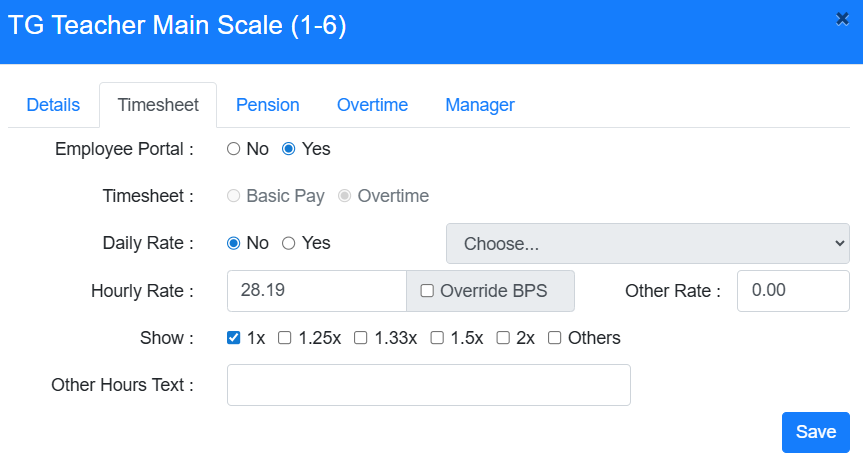
For support staff, the calculation for the hourly rate is: Pay Scale value / Full time weeks / Full time hours = Hourly rate
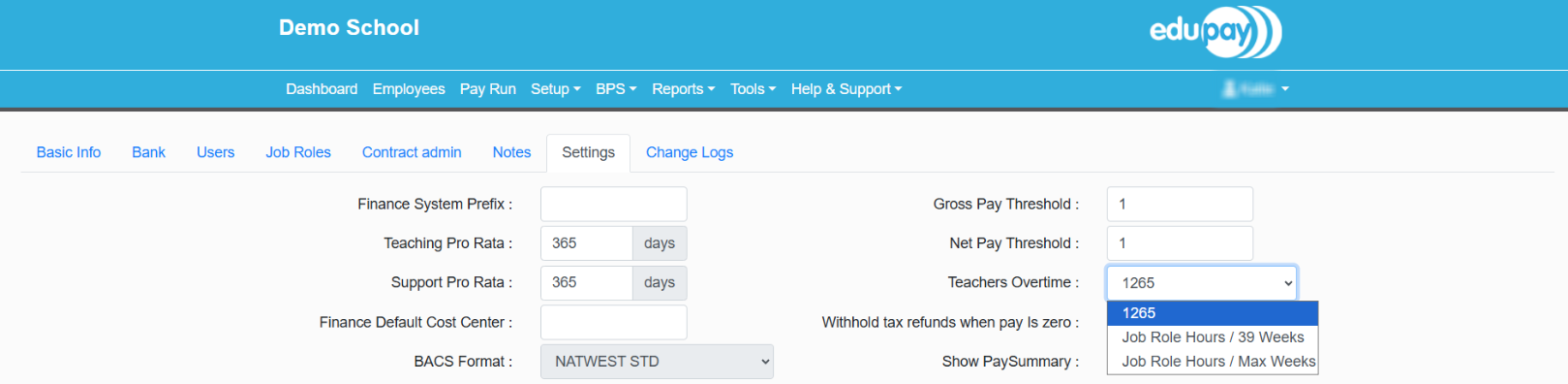
For teaching staff, you have the option to determine the method for calculating the overtime hourly rate.
To view/change the current calculation method, go to the behind-the-scenes settings by clicking on the School/MAT name at the top of your EduPay screen, then click on the Settings tab and select the method you require from the Teachers Overtime drop-down menu:
If an employee is entitled to claim rates such as Time and a Half, or Double Time, these can be selected via. the Timesheet tab by selecting "1.5x" or "2x".
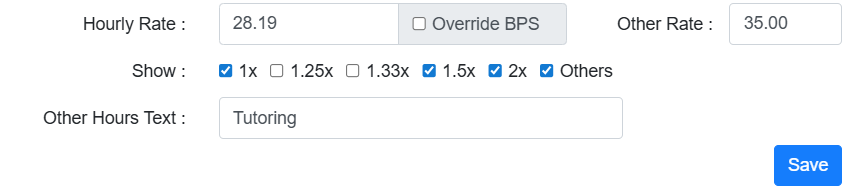
If an individual works additional hours on a rate that differs from their standard hourly rate, you can create a new rate, specifically for them, within their employee record, as an "Other Rate". You can create a custom Hourly value to this, and use the "Other Hours Text" to give this a unique name for employee's to recognise when submitting timesheets.
To ensure this is available for the employee, you will need to tick the "Others" option via. the timesheet tab.
Ad-Hoc Rates
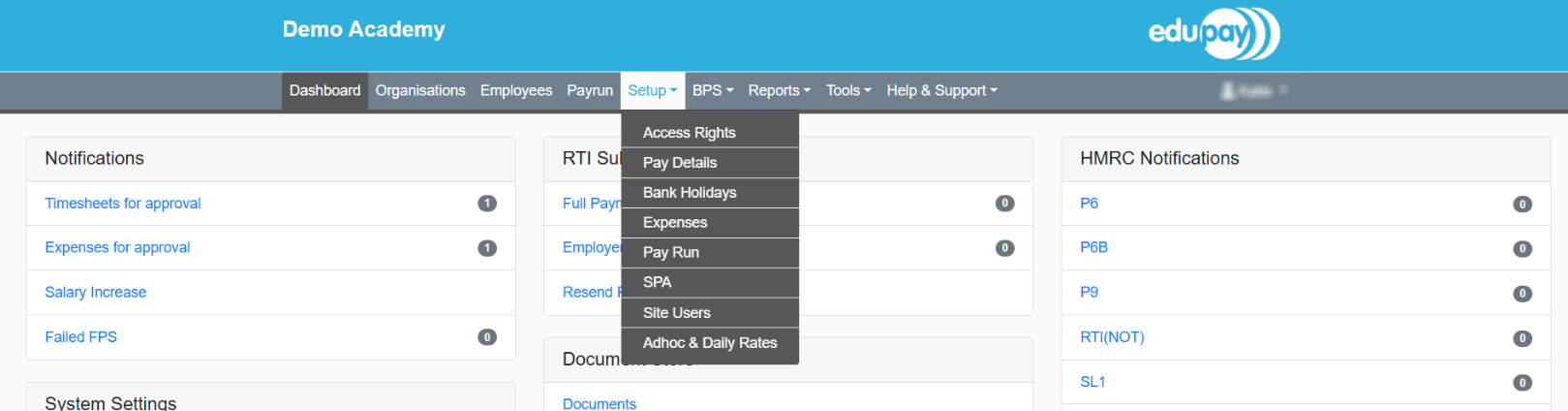
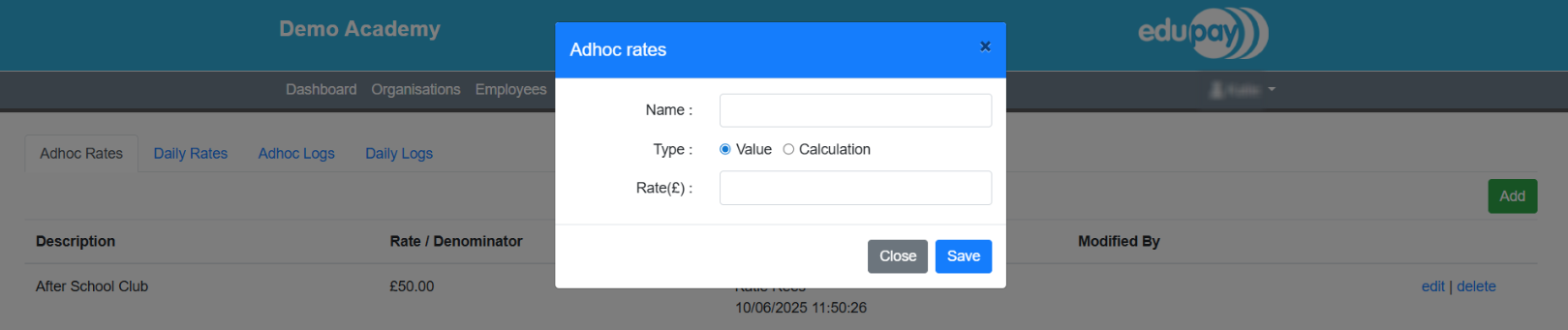
If you have a rate that multiple employees are eligible for, such as lunch time duty, you can create an Ad-hoc rate. This is a distinct rate, separate from their standard hourly rate, that you can set up and assign to all relevant employees. Go to the Setup tab on the MAT level (grey bar) and select Ad-hoc & Daily Rates from the dropdown menu:
- Click the green ‘Add’ button to create the Ad-hoc rate.
- To create a set rate (such as £15 an hour), select the type as Value.
- To add a rate based off a calculation, choose Calculation. For instance, you can set a calculation, such as 1265, where the denominator will divide by the full-time annual salary.
- Give the rate a Name (for example, Lunch Duty) and press the ‘Save’ button:
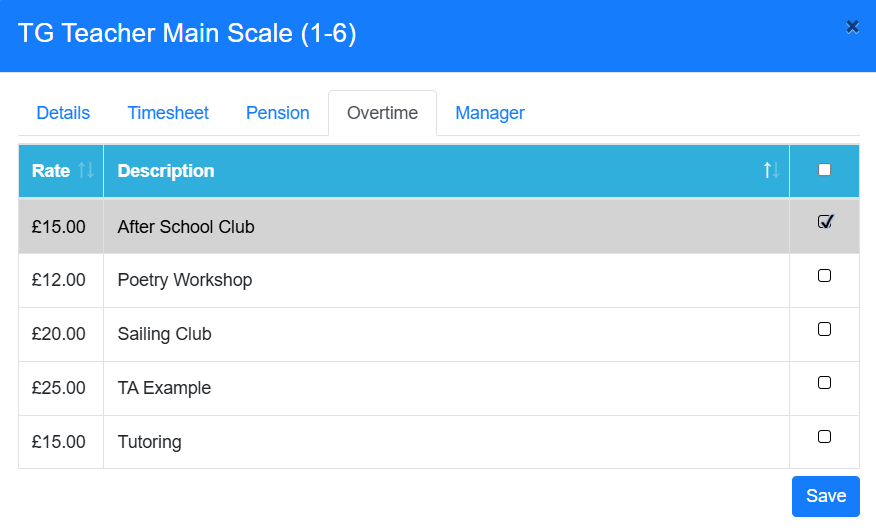
You can now assign this rate to the relevant employees:
- Go to the employee’s record
- Go to the Job Roles tab, and click edit against the relevant job role
- Click on the Overtime tab. The ad-hoc rates you have created will appear here.
- Select the rates relevant for that employee
Was this article helpful?
That’s Great!
Thank you for your feedback
Sorry! We couldn't be helpful
Thank you for your feedback
Feedback sent
We appreciate your effort and will try to fix the article