The first step is to download the details payroll summary via Edupay under reports on the school level.
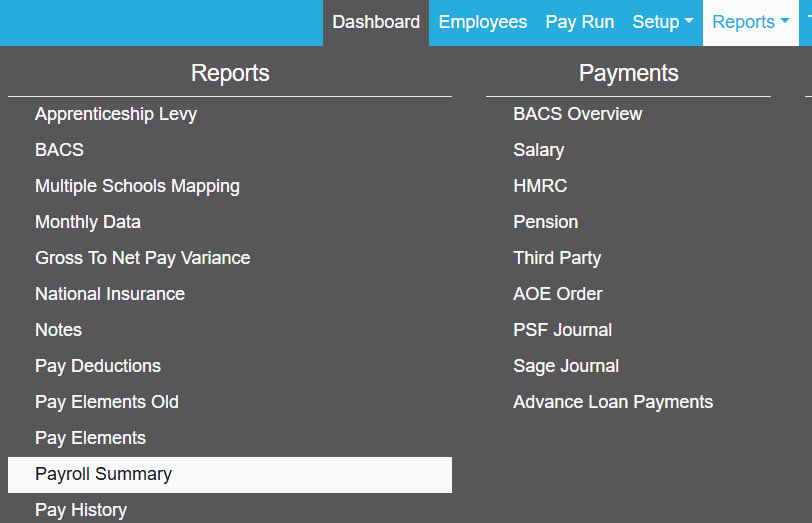
Then you can select the relevant month you wish to reconcile, select detailed summary and then finally download into Excel on the top right.

The next step is to navigate to BPS to map the file to your site which can either be done on the MAT level (this will ensure the mapping is the same for all schools) or individually on the school level.
The easiest and quickest option is through the MAT level by going to Central data -> Mapping -> Payroll Mapping Details.
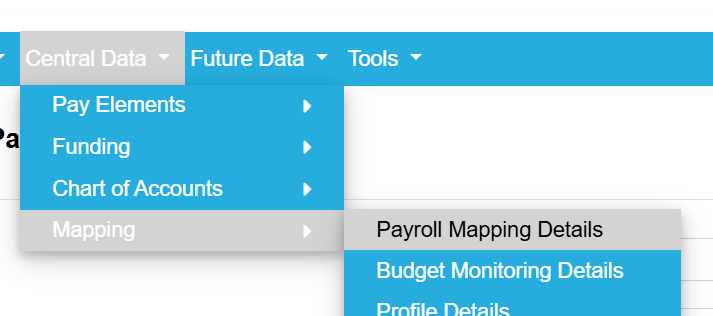
You will then be greeted by a screen like below where you can upload the 'detailed payroll summary' file downloaded in step 1.

Then for the "heading line number/skip number of lines" usually these should be set to 6.
Then click preview and ensure that the headings show correctly at the top of the page.
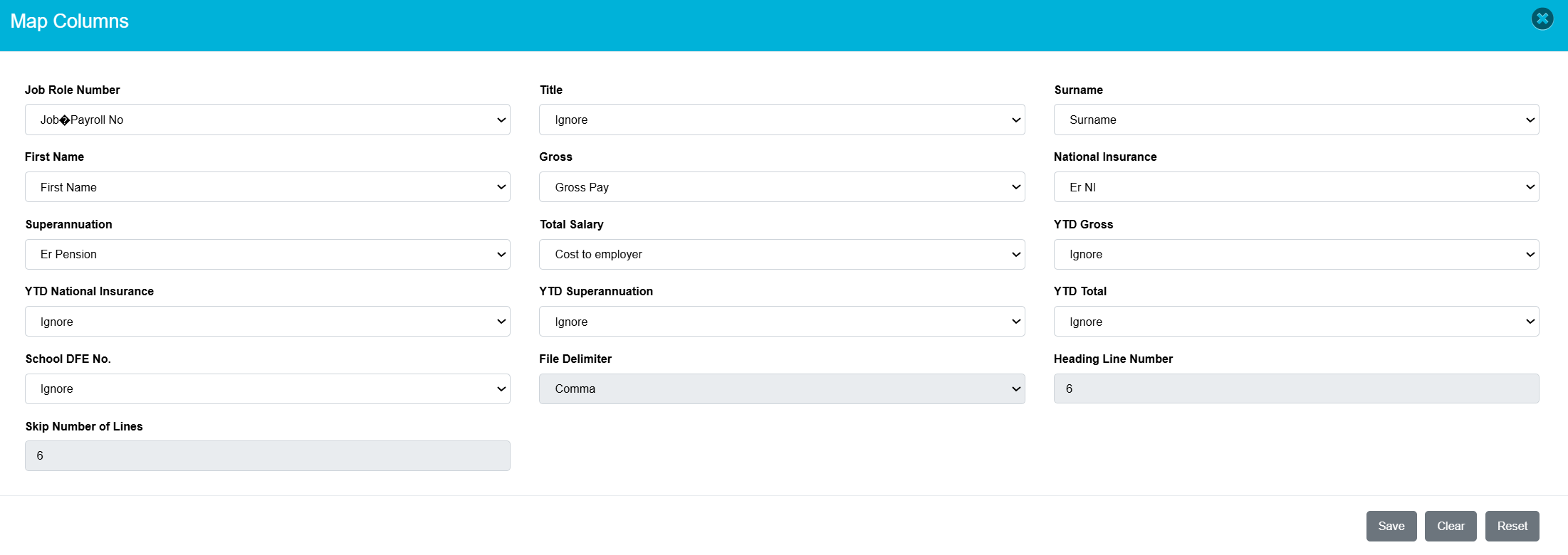
Then click Map columns on the top right, the correct mappings are below (all the YTD columns can be ignored).
Then save when the columns are correct as below.
Was this article helpful?
That’s Great!
Thank you for your feedback
Sorry! We couldn't be helpful
Thank you for your feedback
Feedback sent
We appreciate your effort and will try to fix the article