When inputting a timesheet on behalf of an employee, go to the employee’s record and hover over your name in the top right-hand corner. From here, click on "Employee View" in the drop-down menu:

When you’re in Employee View, the bar at the top of the screen will switch from blue to red. This indicates that you are in another employee's portal, in order to submit timesheets on their behalf.
To submit a timesheet:
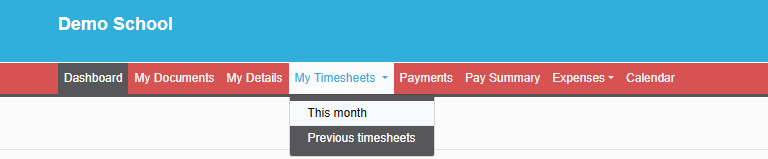
1. Go to the My Timesheets tab and select This Month in the drop-down menu
2. Click on the ‘Add Entry’ button

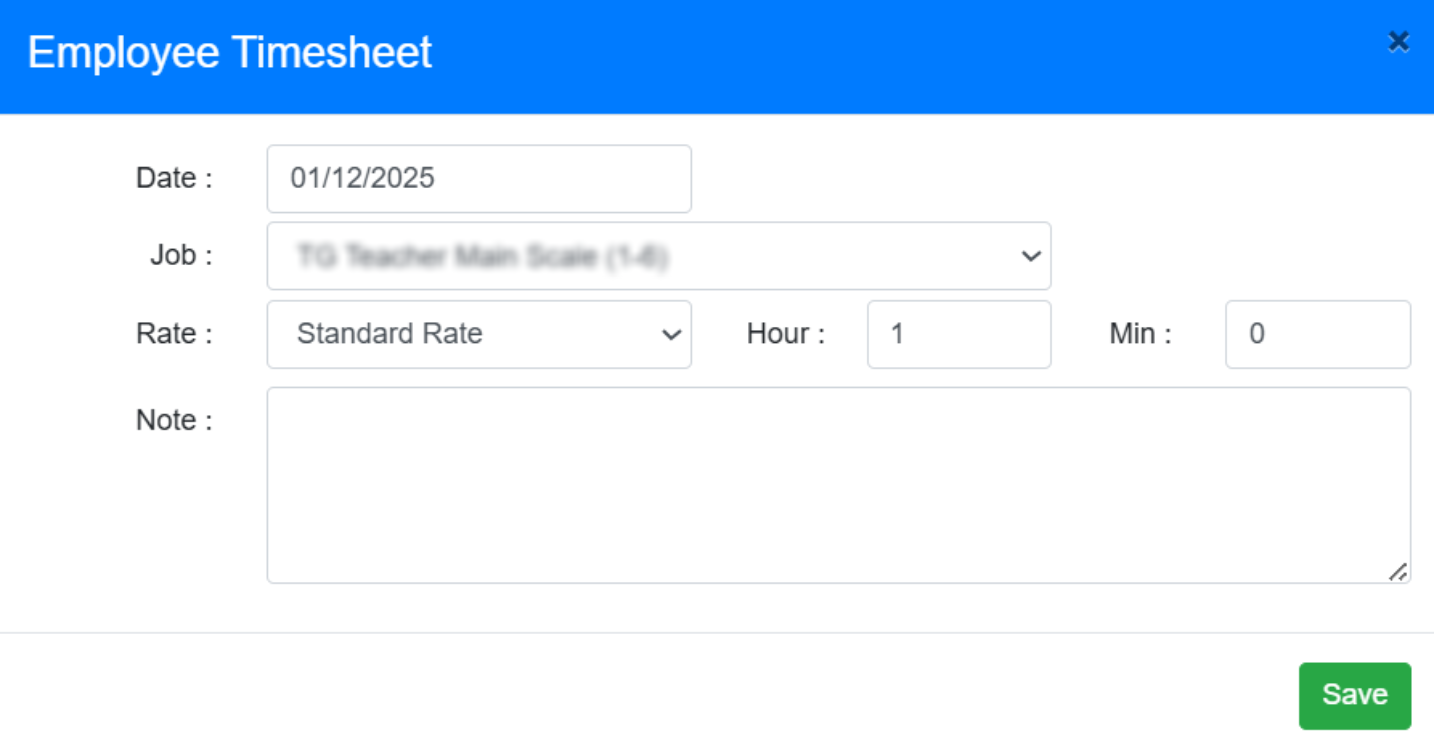
3. Add the Date when the overtime was done
4. Choose the relevant job role from the Job drop-down menu (Employees with more than one job role may have different hourly rate calculations and additional available rates)
5. Select the appropriate rate from the Rate drop-down menu (Standard Hourly Rate will appear as default - guidance on how to set-up and check hourly rates can be found here)
6. Specify the duration of the overtime in the Hour and Min boxes.
7. Include any Notes as needed
8. Click the ‘Save’ button to view the total overtime figure, and confirm.
NOTE: The timesheet feature restricts entries to a maximum of 12 hours per timesheet. This is to encourage auditable overtime per day throughout the month.
9. All timesheets submitted for the month will be broken down on this page per timesheet, including rate, total hours, total pay, and any relevant Holiday Pay.

Make sure to click the ‘Submit’ button
The overtime will then appear for approval by the employee’s Manager/Payroll Manager or Administrator in their Notifications tab on their dashboard
Was this article helpful?
That’s Great!
Thank you for your feedback
Sorry! We couldn't be helpful
Thank you for your feedback
Feedback sent
We appreciate your effort and will try to fix the article