As you or your employees submit timesheets, the dashboard’s Notifications section will accumulate pending timesheets/expenses for approval. The number of timesheets awaiting approval is indicated by the grey number next to the notification:
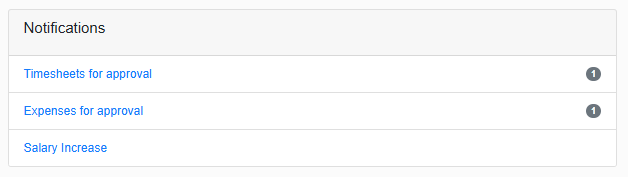
Click on the hyperlink, and this will show you a list of timesheets/expenses for approval. Click view on the entry you want to look at.

For timesheets, you have the option to either approve or query the submitted timesheets:
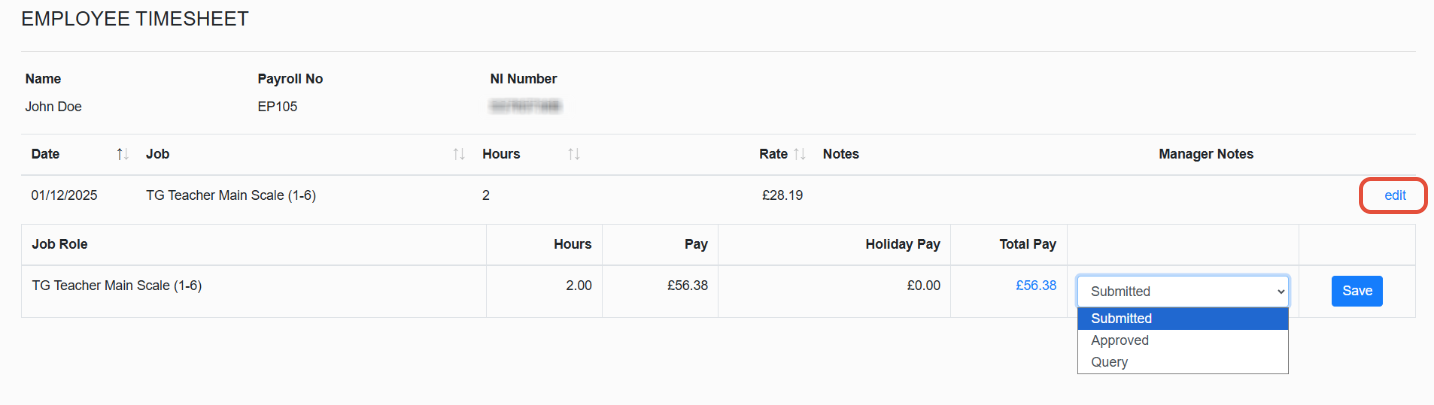
If you select Query, the timesheet will be returned to the employee for review, and will also go into the Timesheets in Query tab on your Dashboard Notifications, displaying a list of timesheets that have been set to query. You can also include a note by clicking edit next to Manager Note section explaining the reason for the query.
If you select Approved, the timesheet will be included in the payroll for the next available month.
You can follow the same steps for your expenses:
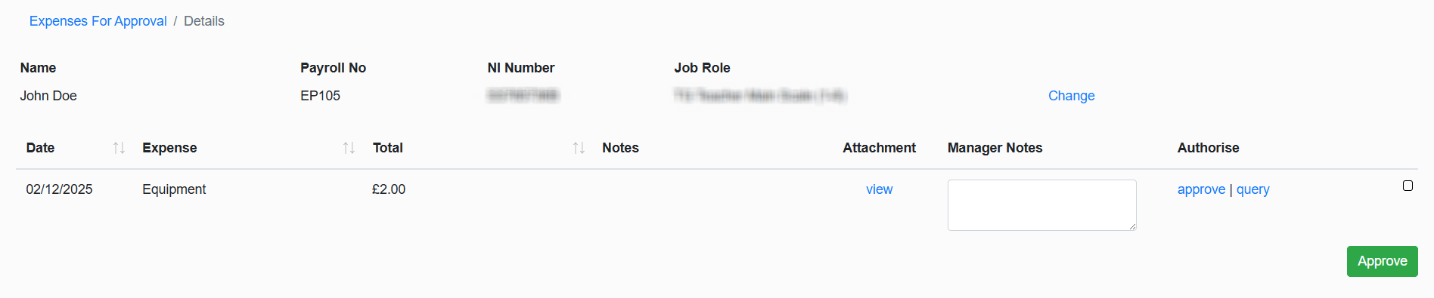
When approving Expenses, you can view any attachments that have been uploaded with the submission.
Was this article helpful?
That’s Great!
Thank you for your feedback
Sorry! We couldn't be helpful
Thank you for your feedback
Feedback sent
We appreciate your effort and will try to fix the article