To begin onboarding a new employee, go to the appropriate school in EduPay, ensuring you’re on the school level (blue bar).
Click on the Employees tab where you’ll find a list of your current employees.
To add your new starter, click on the ‘Add Record/Employee’ green button in the top right-hand corner.

HR ONLY: If you are adding a new starter you will need to specify when clicking "Add Record" - for payroll, this will be "Employee on payroll":
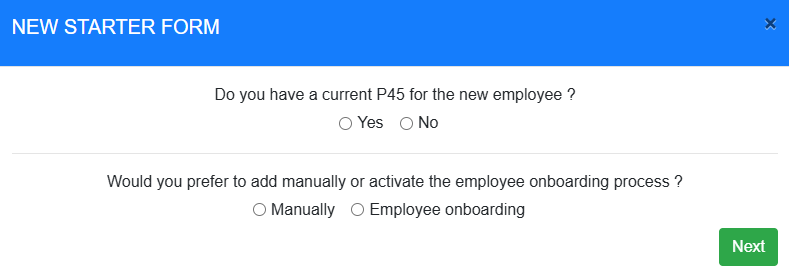
Depending on if you have a P45 for your new employee, the system will prompt either New Starter Checklist information, or request P45 data.
HR ONLY: You will have the option to launch the "Employee Onboarding" process, or you can proceed with manually onboarding your new starter - there is separate guidance on this here.
Manual Onboarding - Without a P45:
Before beginning to add your new start, the system (if you have indicated that you do not have a P45) will prompt you to download the New Starter Checklist from the gov.uk website.
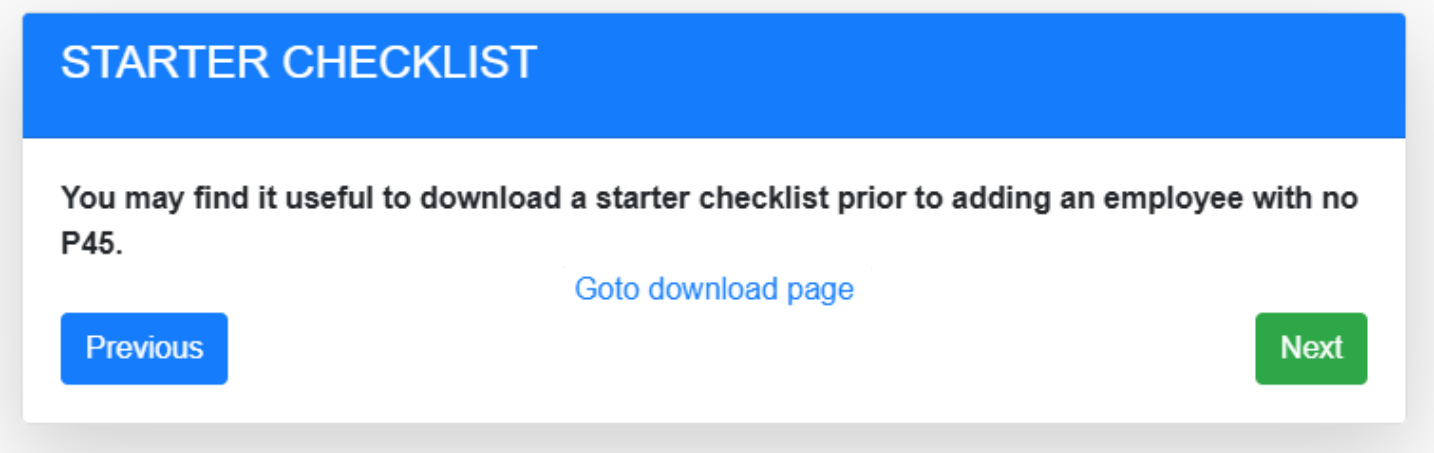
NOTE: You will need all personal details ready to hand to proceed with adding your new starter to EduPay (Date of Birth, Bank Details, Contact Information, etc.)
1. Fill in all provided Basic Information into the fields below (All required fields are as filled below):
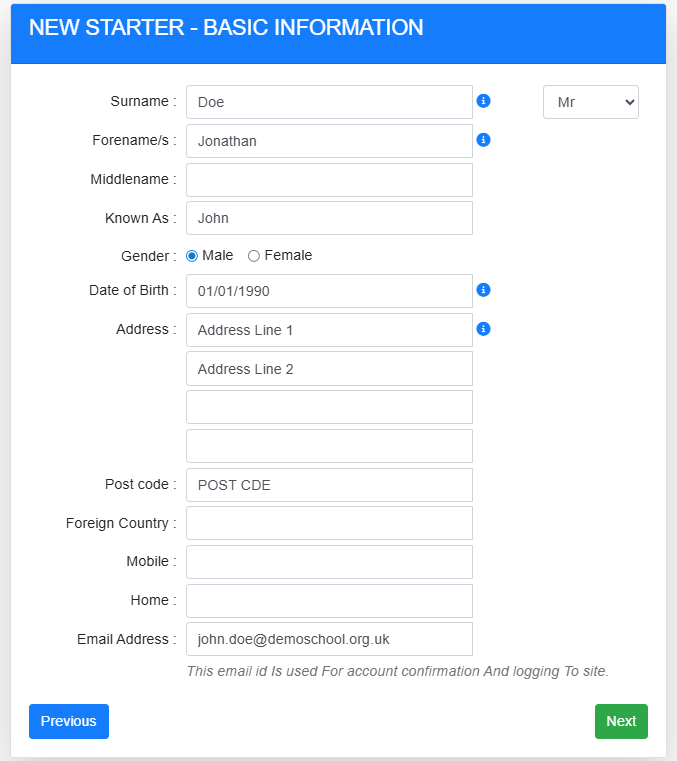
Note: The email address provided during onboarding will be the email and user name used for account confirmation
2. You will need to copy the details from your New Starter Checklist including NI. Number, and reflect the answers provided in the Employee Checklist:
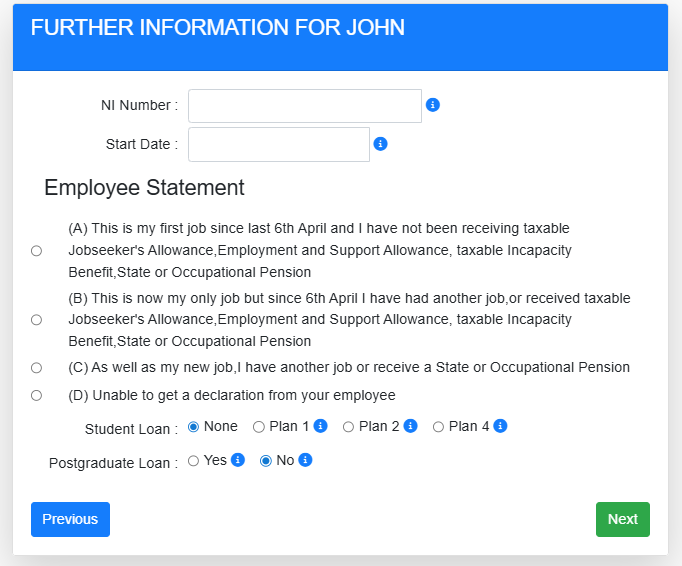
Note: EduPay will use the answers provided by the Employee Statement to determine emergency tax basis for those without a P45 yet.
3. There is further information for details which may impact someone's National Insurance category - this is to ensure that EduPay onboards your new starter with the correct information.
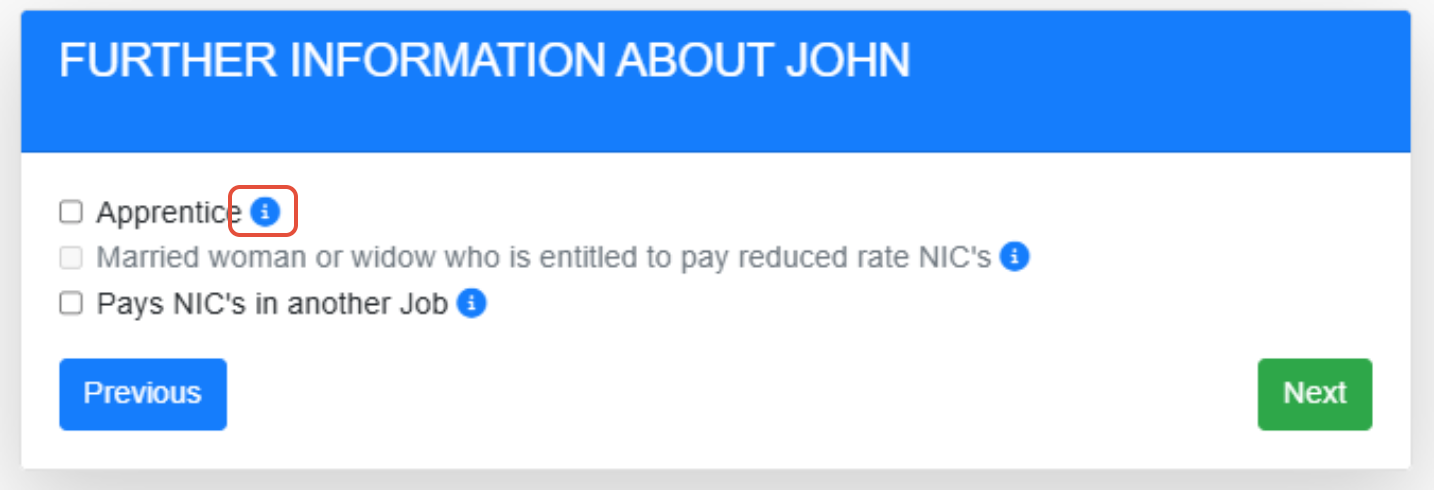
Note: There are small information icons to provide more details on these - if you do not believe any apply, you can leave this section blank.
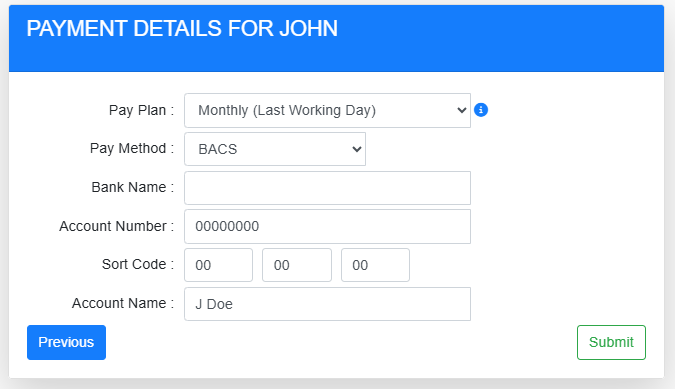
4. Provide payment details for your new start - this would include the "Pay Plan" (Pay Date) this employee will fall under.
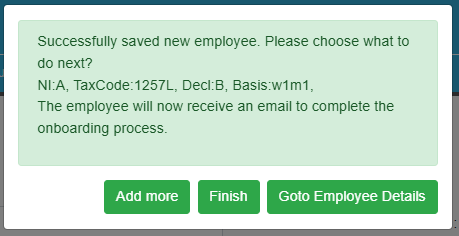
5. When you Submit your onboarding forms, the system will give you a pop-up detailing the tax and National Insurance basis that the system has deemed correct based on the information provided. From here you can 'Finish' which will take you back to your employee list, or 'Go to Employee Details' to view your new record in EduPay.
The next stage on the onboarding process is to navigate to your school's unique BPS site to input your contract information. Relevant guidance on navigating and adding employee contracts in BPS can be found here
Manual Onboarding - With a P45:
1. Input the relevant P45 information as you have received it, including National Insurance Number, and Previous Pay and Tax to date:
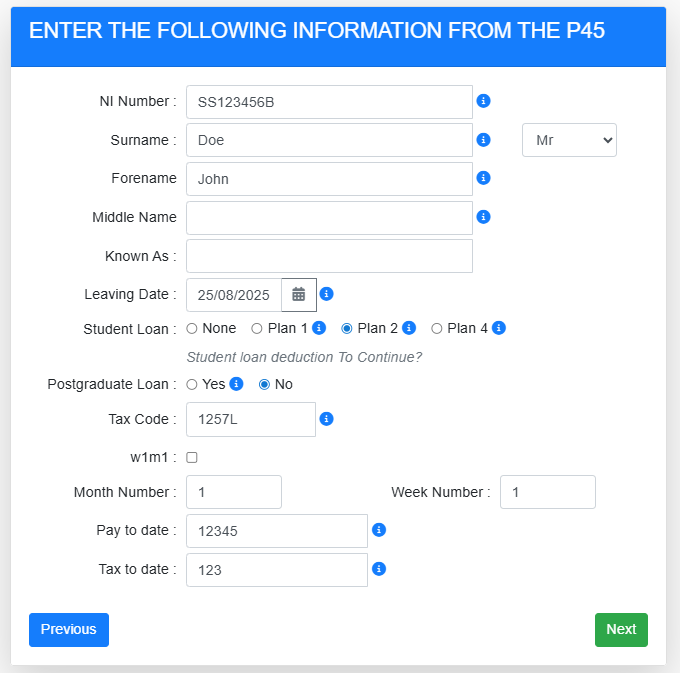
2. Complete the rest of the personal details relevant for payroll processing (All required fields are as filled below):
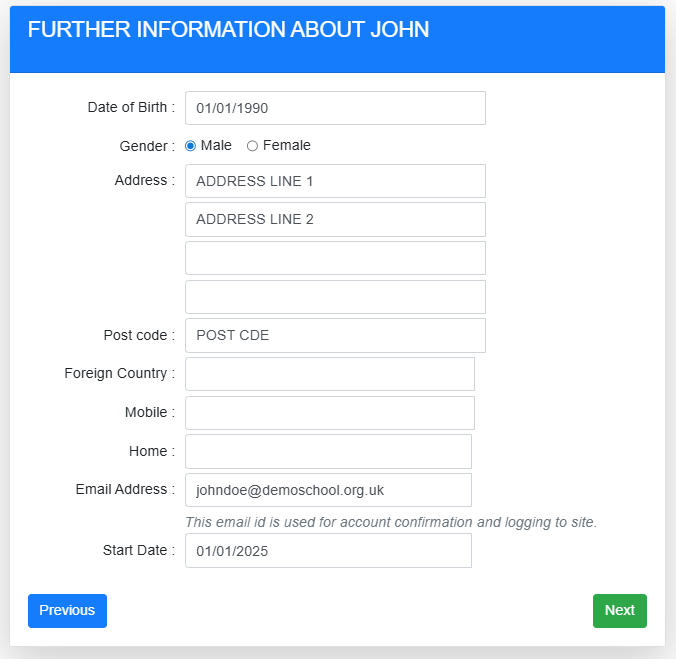
3. There is further information for details which may impact someone's National Insurance category - this is to ensure that EduPay onboards your new starter with the correct information.
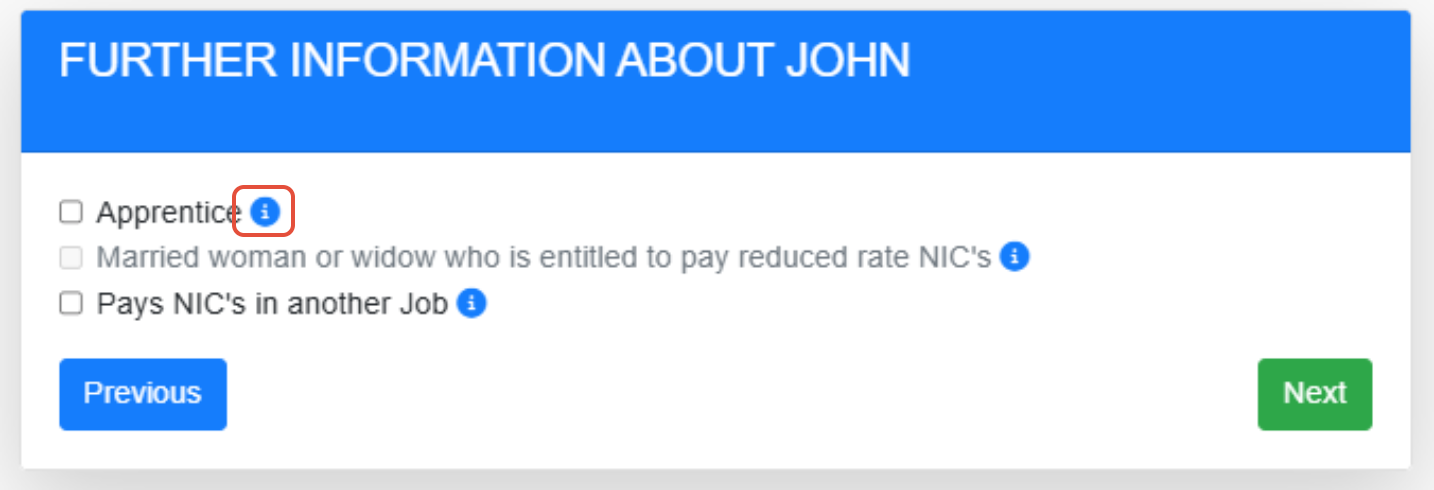
Note: There are small information icons to provide more details on these - if you do not believe any apply, you can leave this section blank.
4. Provide payment details for your new start - this would include the "Pay Plan" (Pay Date) this employee will fall under.
5. When you Submit your onboarding forms, the system will give you a pop-up detailing the tax and National Insurance basis that the system has deemed correct based on the information provided. From here you can 'Finish' which will take you back to your employee list, or 'Go to Employee Details' to view your new record in EduPay.
The next stage on the onboarding process is to navigate to your school's unique BPS site to input your contract information. Relevant guidance on navigating and adding employee contracts in BPS can be found here
Was this article helpful?
That’s Great!
Thank you for your feedback
Sorry! We couldn't be helpful
Thank you for your feedback
Feedback sent
We appreciate your effort and will try to fix the article