EduPay has two levels of access: MAT level, and School level.
MAT level allows you to access consolidated reports, run the pay run and receive notifications for all schools within the trust. MAT level is also used to build or change certain settings/elements that will feed through to all schools, for example, inputting term dates, adding pay elements, expense types and overtime ad hoc rates.

School level enables you to access reports, run the pay run and receive notifications for the individual school you are in.

You can configure access within MAT level or school level. Individuals needing access to all, or multiple schools should be set up in MAT level, while those required to work in one school should be set up in school level
The system has three default levels of access set up. These can be set up on MAT level or school level:
Administrators: Have access to everything on the site
Payroll Managers: Have access to everything the Administrators do, except access to the behind-the scenes settings
Managers: Can only approve timesheets and expenses (Managers can be set up to only approve selected individuals’ timesheets and expenses, for example, the head invigilator may have access to only approve the other invigilators submissions).
Follow these steps to set users up against these levels of access:
1. Click on the trust/school name at the top of your site:

2. Click Users: You will now see the three default access level options. Add a user to one of the options, by clicking the "+" icon:

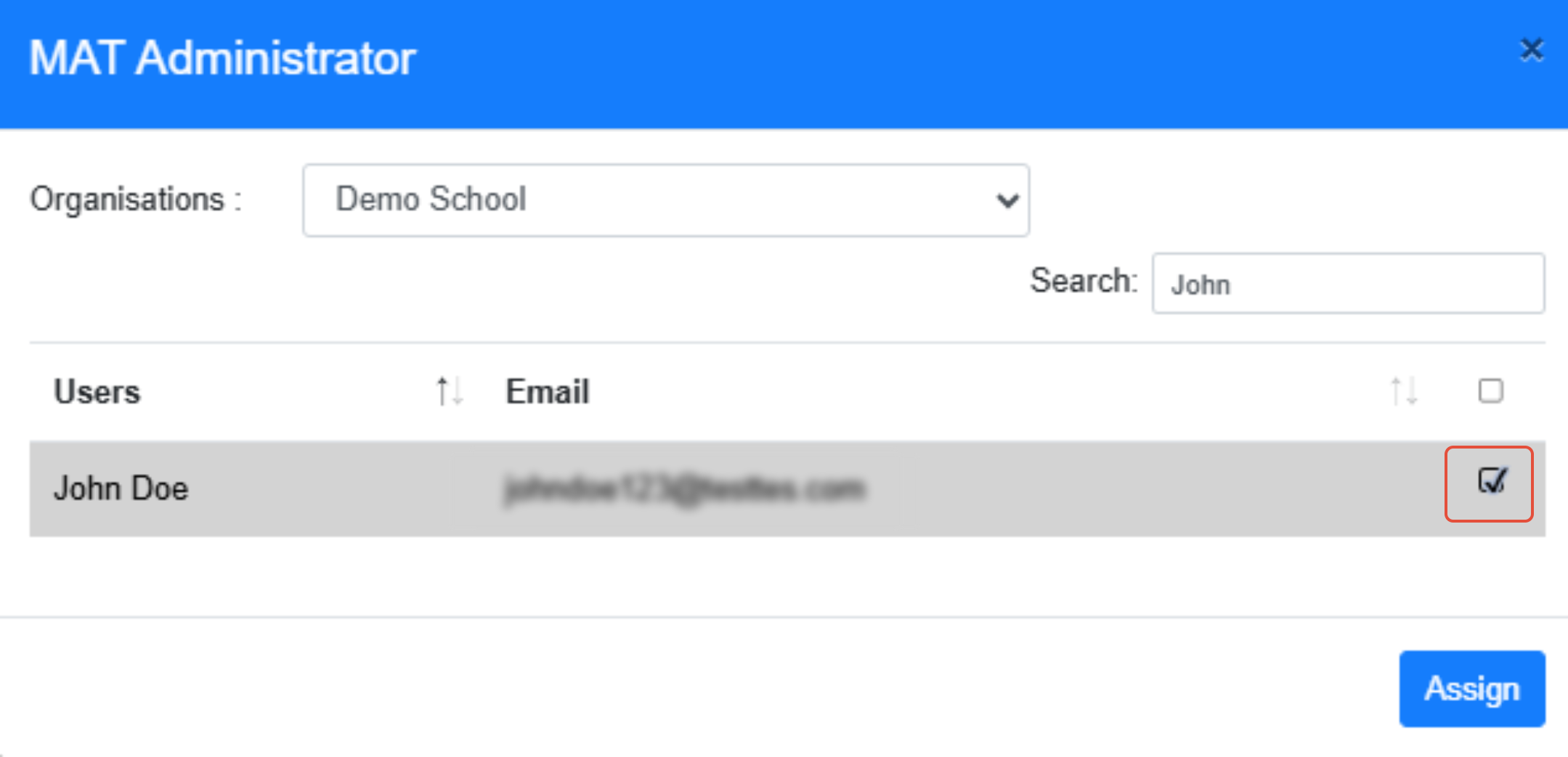
You will see an Organisations drop-down menu and a list of employees in that school.
3. Tick the box next to the employee you want to assign access to, and then click the ‘Assign’ button.
Editing User Access
If needed, you can then assign the user to one of the custom access roles you’ve created, or filter access per school.
Click the hyperlink on the default access level you have assigned them to (e.g. MAT Administrator), locate the user, then click the edit icon:

To assign a custom access role, click the Access Rights drop-down menu and select the appropriate role from the drop down, and then click the ‘Assign’ button:
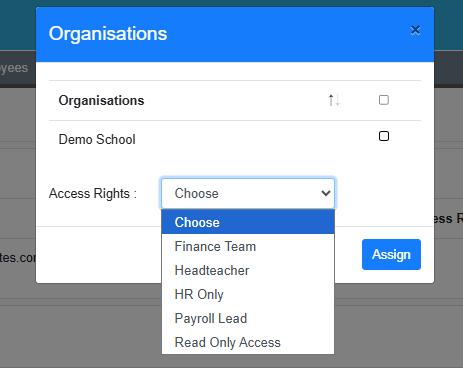
You can select specific organisations within a trust for a user to be able to access when they are set up on MAT level. If no schools are selected, it automatically grants access to all schools.
NOTE: Guidance on how to create custom access roles can be found here.
Was this article helpful?
That’s Great!
Thank you for your feedback
Sorry! We couldn't be helpful
Thank you for your feedback
Feedback sent
We appreciate your effort and will try to fix the article