When you have created a new starter in EduPay, they will automatically sync straight through to your school's unique BPS site.
Navigating BPS:
To begin, you will need to log-in with your individual BPS log-in (this may be a different username to your EduPay log-in):
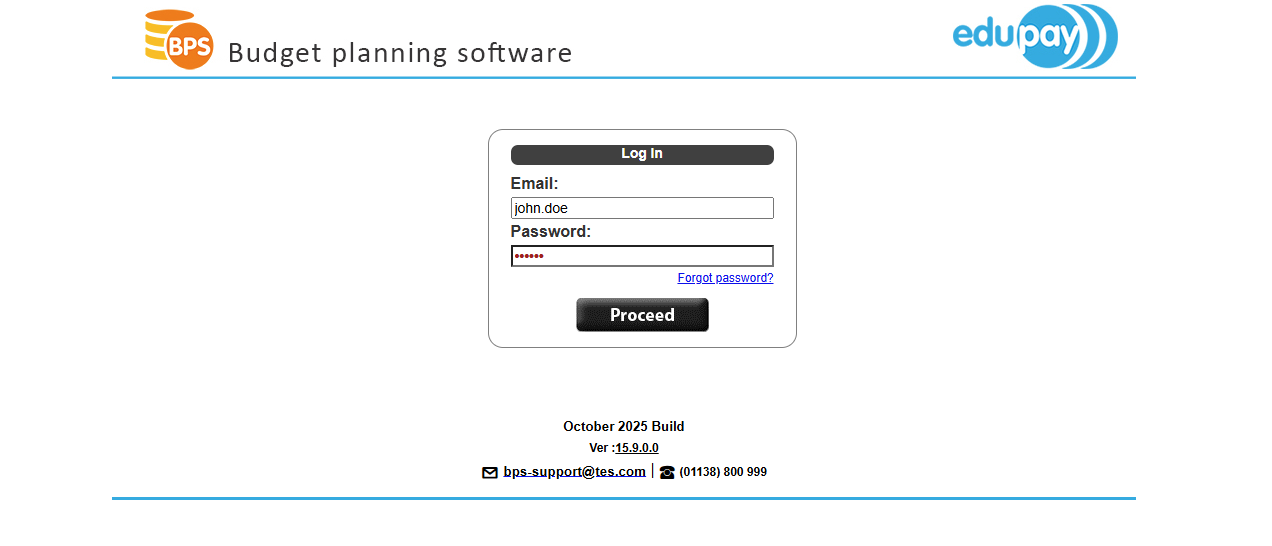
NOTE: Our support team contract address is listed here
When you log-in, you will either be taken straight to your dashboard, or have to select your relevant school:

NOTE: Each school will have it's own individual dashboard. To add a contract to your new employee, you will want to navigate to the same school their record was created in EduPay
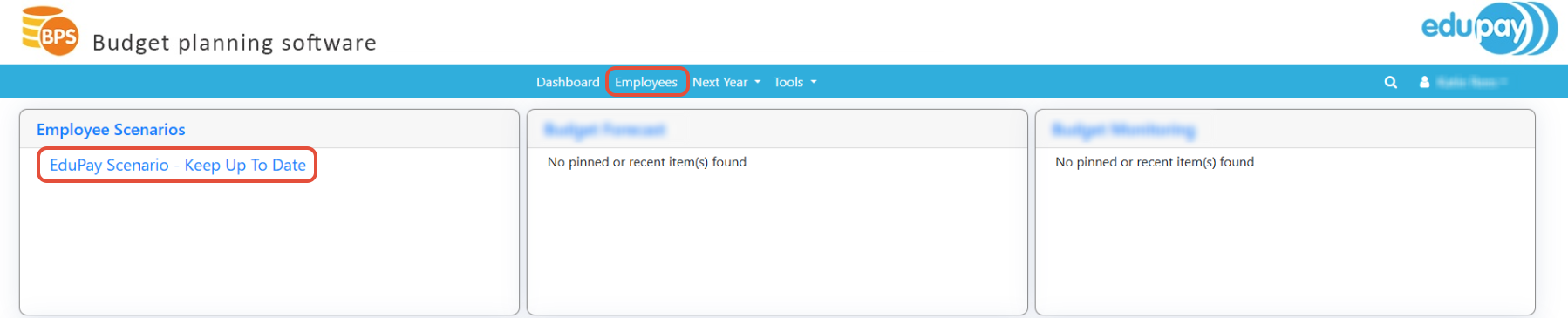
NOTE: BPS is also a separate contracted budget service - there may be features on your dashboard that you do not need/have access to as part of your EduPay subscription.
From here, we can either navigate to the "Employees" button at the top of your tool bar, or, you can click straight to your "EduPay Scenario" via your dashboard.
Your EduPay scenario is where all employee contractual data is held. This scenario is linked to your EduPay site, and is marked with the EduPay logo for reference.

To access your EduPay Scenario and all staff data, you will need to click into your "Employees" Button
Adding a New Contract
Once you have navigated to your employee scenario, you will see a list of all your employees, including any new starters:
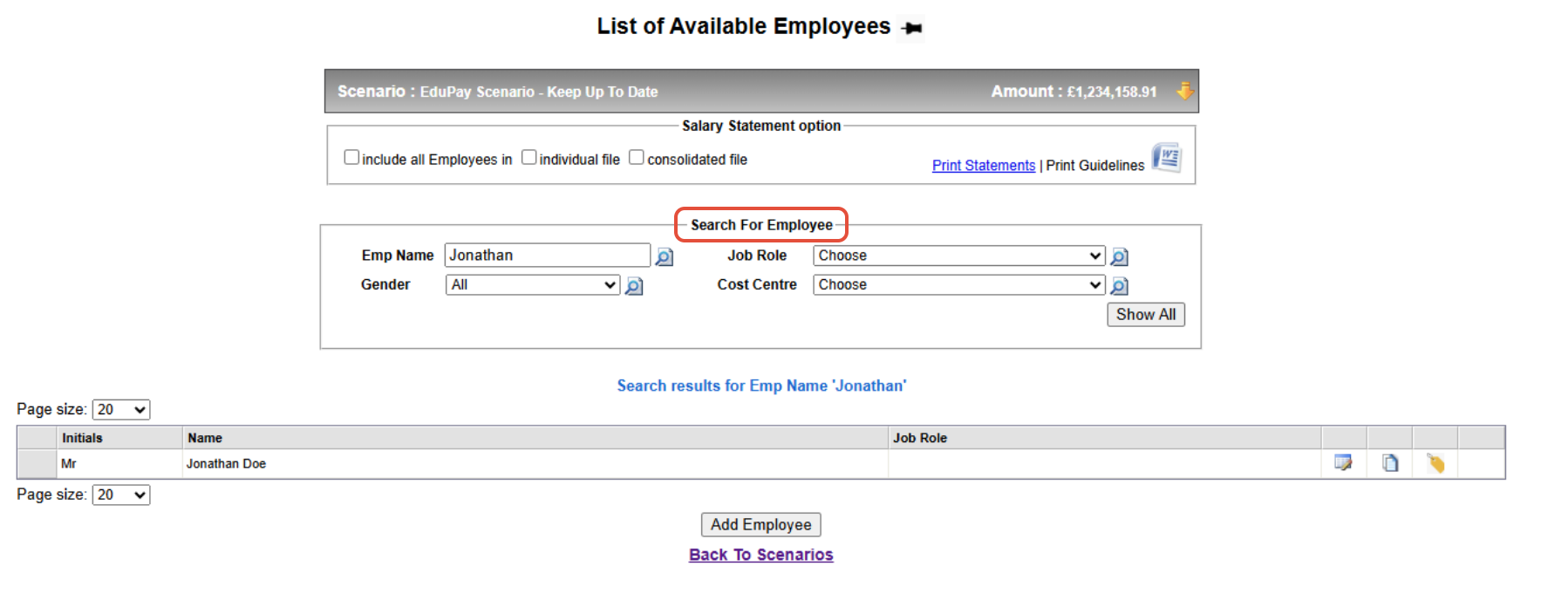
NOTE: As above, you can also filter your search from all employees by name, job role, gender or cost centre
When new starters are added in through EduPay, they will instantly sync through to your employee list. They will be listed without a job role until the relevant contract is added to their new BPS record.
1. To add your new role, you will need to click the 'Edit' Button against your employee:

2. Completing the Personal Tab
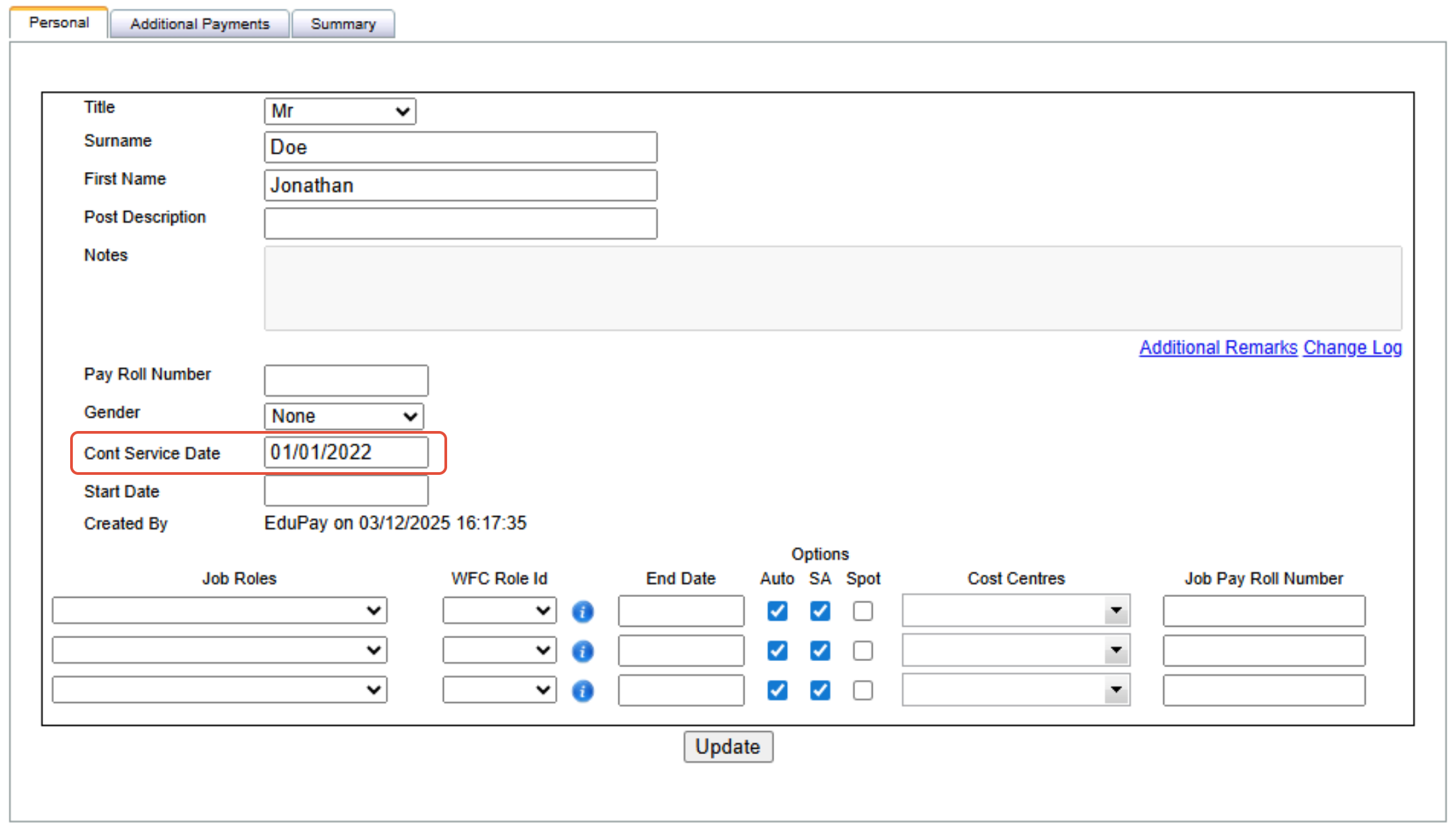
When an employee syncs from EduPay, the Title, First Name, Surname and Continuous Service Date will all feed through based on the onboarding information.
NOTE: Continuous Service Date is automatically populated with the employee start date. If you honour a historic continuous service date from previous employment within your Local Authority, this will need to be updated
3. Selecting a Job Role
Once you are happy with all the personal details, you will need to select the relevant job role for this employee. If you click on any of the three available job role drop downs, you will see a menu of relevant job roles created by yourselves, or by our onboarding team during set-up:
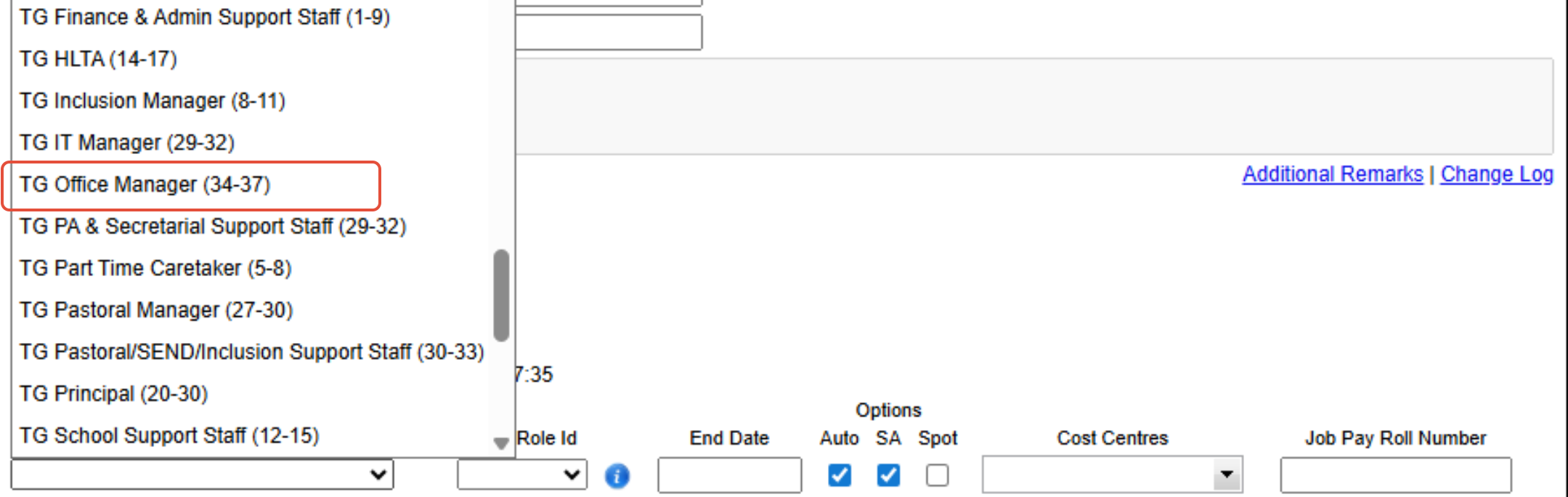
There are a few additional options relating to the role that you may wish to amend:
- End Date: This is for any fixed term contracts with a known End Date
- It is important to note that this end date does NOT make an employee a leaver, this needs to be actioned in EduPay!
- Auto: This relates to your Auto-Incrementation each year! We would always recommend keeping this TICKED, unless a member of staff will never increment.
- There is an approval process for all auto-incrementation in EduPay, via the "Salary Increase" section of your dashboard. All staff will appear on this screen from the relevant increment month, and EduPay will also calculate the relevant months' backpay until it is approved.
- Job Roles that are set-up on a set grade (i.e. Grade A (1-4), will not increment passed the highest point on the grade, this would be a job role change.
- SA: This is part of BPS' budget tool - it relates to employer pension, and is unticked if an employee does not pay into pension for the sake of budget totals. Please note that does not sync through to EduPay if unticked.
- Spot: This tells the system that this job role is calculated in a SPOT salary, as opposed to a pay scale. This means when we go to input our contract information, BPS will ask for the Full Time Annual Value, as opposed to a pay scale point.
- Cost Centres: Cost centres are applied PER JOB ROLE. If your school uses cost centres, you would select the relevant cost code to the job role - this will be important for your Financial Journals in EduPay
- Job Pay Roll Number: This is part of BPS' Budget tool - it relates to Payroll Reconciliation, and how employees are mapped between your budget scenarios and your payroll files.

Once you're happy with everything, you need to hit the 'save' button, which will generate a new 'Job Role' tab:

4. Inputting Contract Information (Teachers)
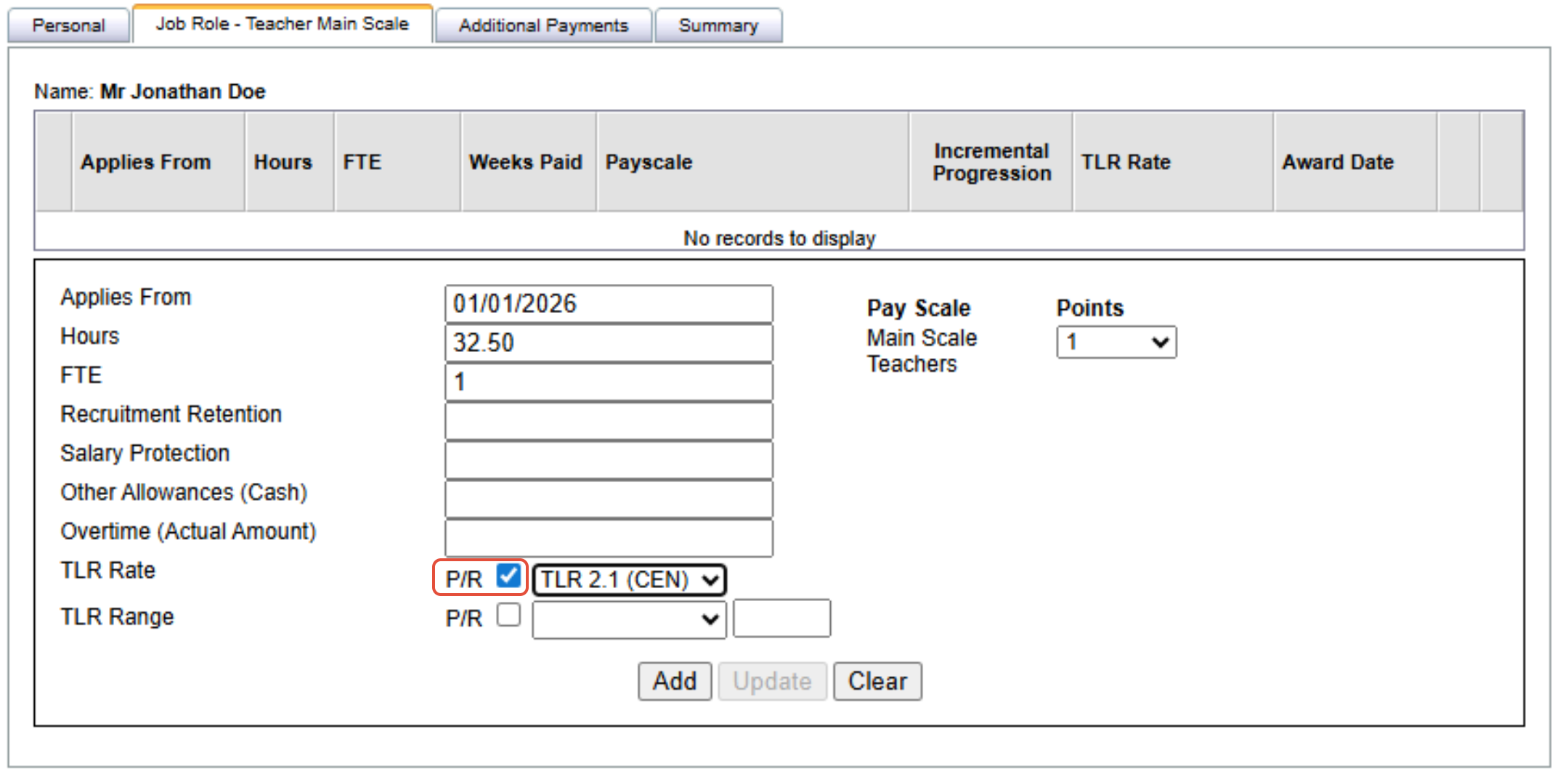
BPS is designed to handle the calculation process of an employee's contract, based on the information provided:
- Applies From: This is the date that this information is set to apply from (if this is a new starter, this would be their start date)
- Hours/FTE: As teachers are paid all year round, BPS can calculate the FTE figure on hours alone. Alternatively, you can input the FTE amount (e.g. 0.5), and the system will calculate the correct amount of hours based on the job role details.
- Recruitment Retention, Salary Protection, and Other Allowances: This is an annual full time figure that is added on to someone's contract - this will sync through to EduPay from BPS, but will not be pro-rata'd for any part time staff.
- Overtime: This would relate to contractual annual overtime amounts ONLY - timesheets and overtime hours can be processed separately in EduPay
- TLR Rate: All relevant TLRs and TLR rates that were provided during onboarding will be available via the drop down.
- TLRs can be pro-rata'd via the 'P/R' tick box, this will be pro-rata'd to the contractual FTE. Alternatively this 'P/R' tick box can be unticked, meaning the full time amount for the TLR will be divided by 12, regardless of any part-time contractual hours.
- TLR Range: If using the TLR range (commonly known as a TLR 3), you can input a custom value at it's full time annual equivalent.
- Similarly with TLR Rates, this can also be pro-rata'd to an employees contractual FTE.
- Pay Scale: Select the current pay scale point the employee is starting their contract on.
- Pay Scales are selected per job role, and can be specified by grades or other ranges (e.g. Main Scale Teachers), all relevant points available for the job role selected will be available via the Points drop down.
Once you have added all your relevant contractual details, the system will generate two different timelines of information:

First, you will see your MANUAL timeline, this relates to the information you have input manually yourself. Below that, you will see AUTO timelines, that relate back to that auto-increment, and reflect that pay scale increase each year as of the relevant increment months per job role.
4. Inputting Contract information (Non-Teaching staff)
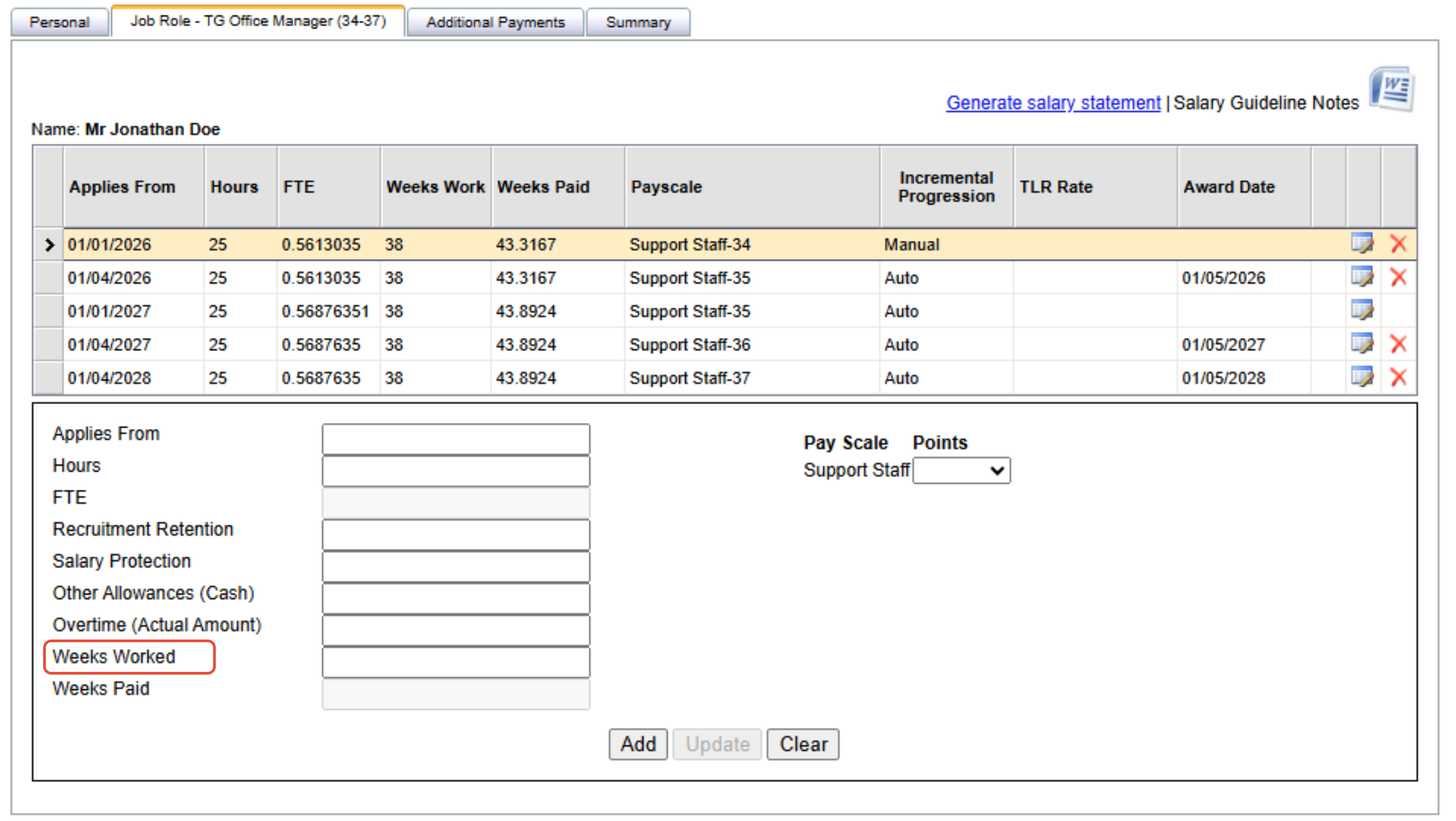
For Non-Teaching members of staff, the system asks for different information fields in order to calculate FTE. This will be either a Weeks Worked or Weeks Paid figure - the system will not calculate FTE without both hours and weeks as non-teaching staff are not always paid year-round.
NOTE: If you have a Term Time Calculation (or Divisor Data) onboarded to your BPS site, then the system will also consider Continuous Service Date as input via the personal tab, and automatically increment staff holiday entitlement at the exact date they reach 5 or 10+ years continuous service (depending on what you honour as a school).
5. Confirm calculation
BPS offers a summary tab, so when inputting contractual information you can see a breakdown of how this will be pulling through to EduPay for payroll each month. The figures in the BPS summary will always be as they appear in EduPay for payroll:
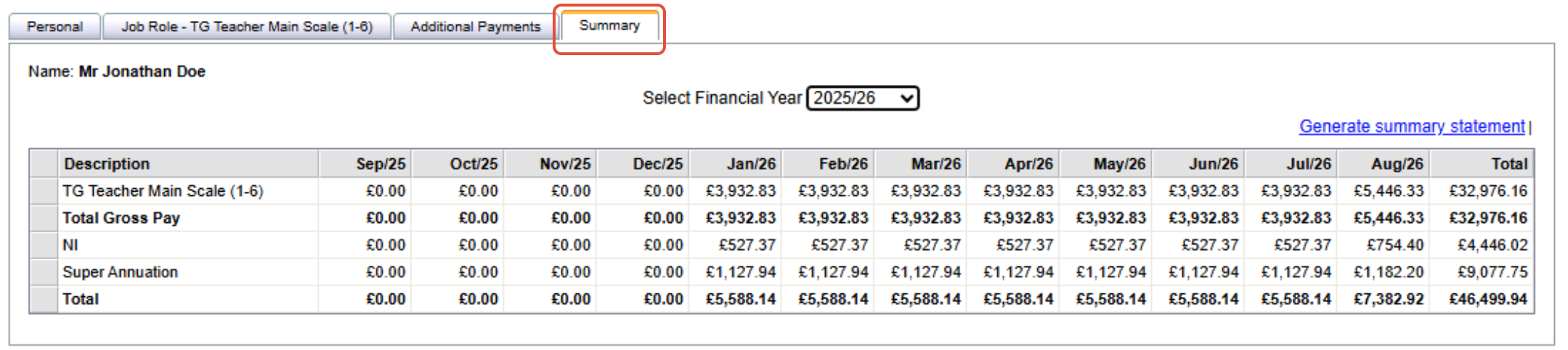
Once you have updated your contract in BPS, this will automatically sync through and update to your employee record in EduPay! All Job Role information can be found synced through in EduPay via the Job Role tab in an employee record.
Was this article helpful?
That’s Great!
Thank you for your feedback
Sorry! We couldn't be helpful
Thank you for your feedback
Feedback sent
We appreciate your effort and will try to fix the article