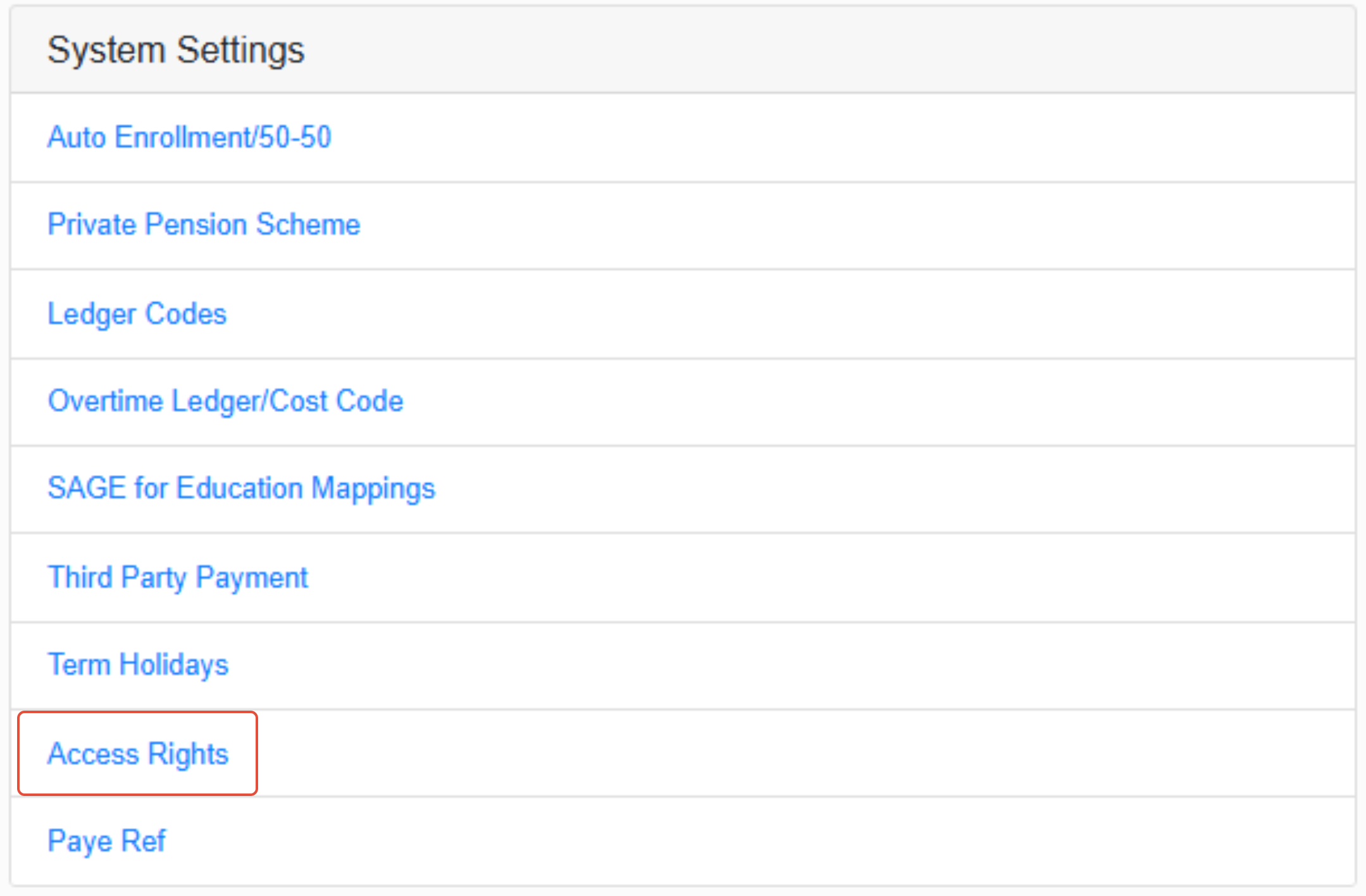
The first step to creating a custom access template is to open the dashboard on either MAT or School level in EduPay, and navigating to 'Access Rights'. This is found in your Systems Settings:
You will need to choose the relevant access level 'Template' from the drop down list - these will be EduPay's default access levels you wish to customise.
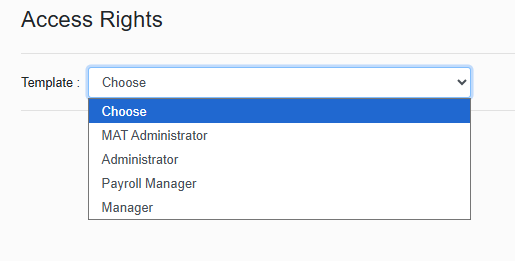
Note: "MAT Administrator" templates are only for use for MAT level Administrators, and "Administrator" is specifically any Administrator users set-up at School Level (Payroll Manager and Manager templates will appear on both MAT and School level)
You will then be able to give your custom access 'Role' a name, this could be a specific job role, or unique identifier for you to label the role type:

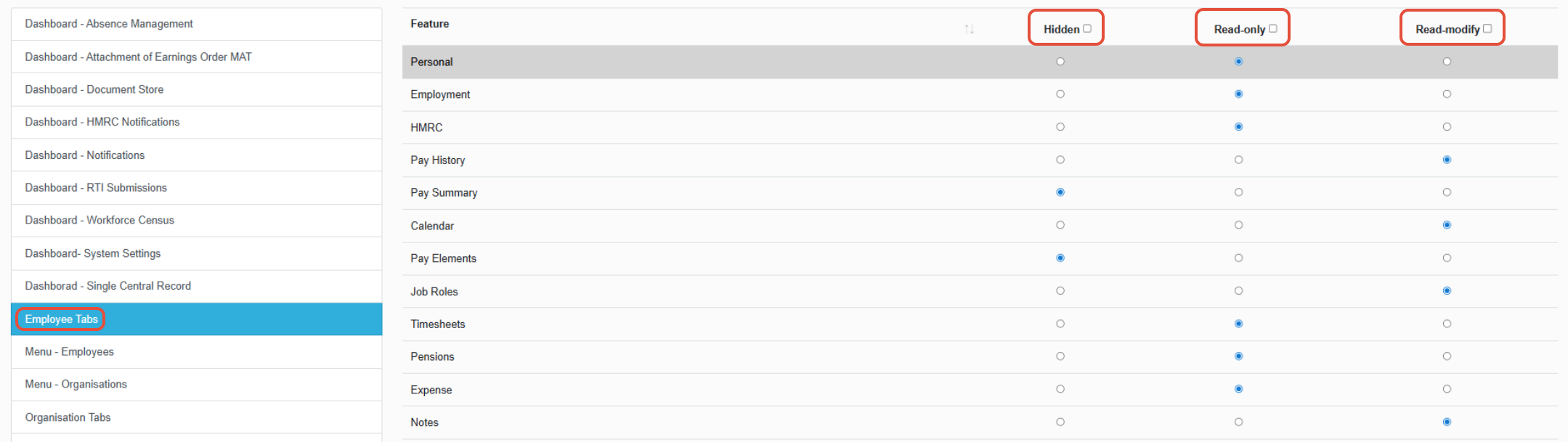
Based on the Template you have chosen, you will see a variety of tabs on the left of the page, these are all the areas of the site this default role can typically access. For each area of the site, you can customise levels of access.
For each area of the site, you can determine if these areas are:
- Hidden - Will not be seen by this user when looking through their EduPay site
- Read Only - A user can see these areas, but will not be able to make any changes
- Read-Modify - A user can access this area, and make any relevant changes.
These tabs are completely broken down per area of the site. For example, you can completely customise each of the tabs in an employee record, to determine if these are Hidden, Read Only, or Read Modify:
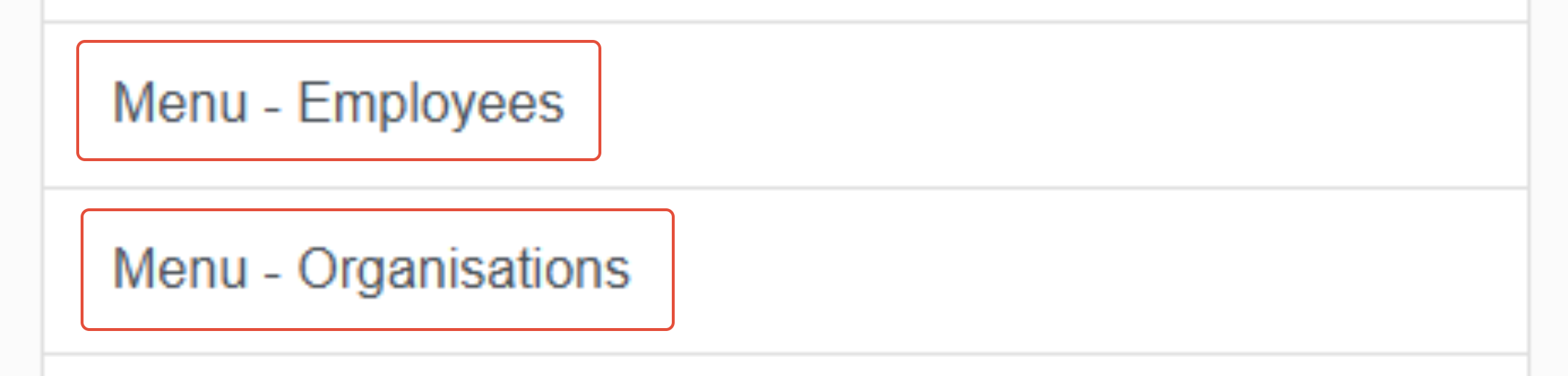
IMPORTANT: To navigate between organisations and employee lists, these will always need to be set to either Read-Only or Read-Modify.
Once you are happy with the role you have created, you can hit the save button against the 'Role Name':

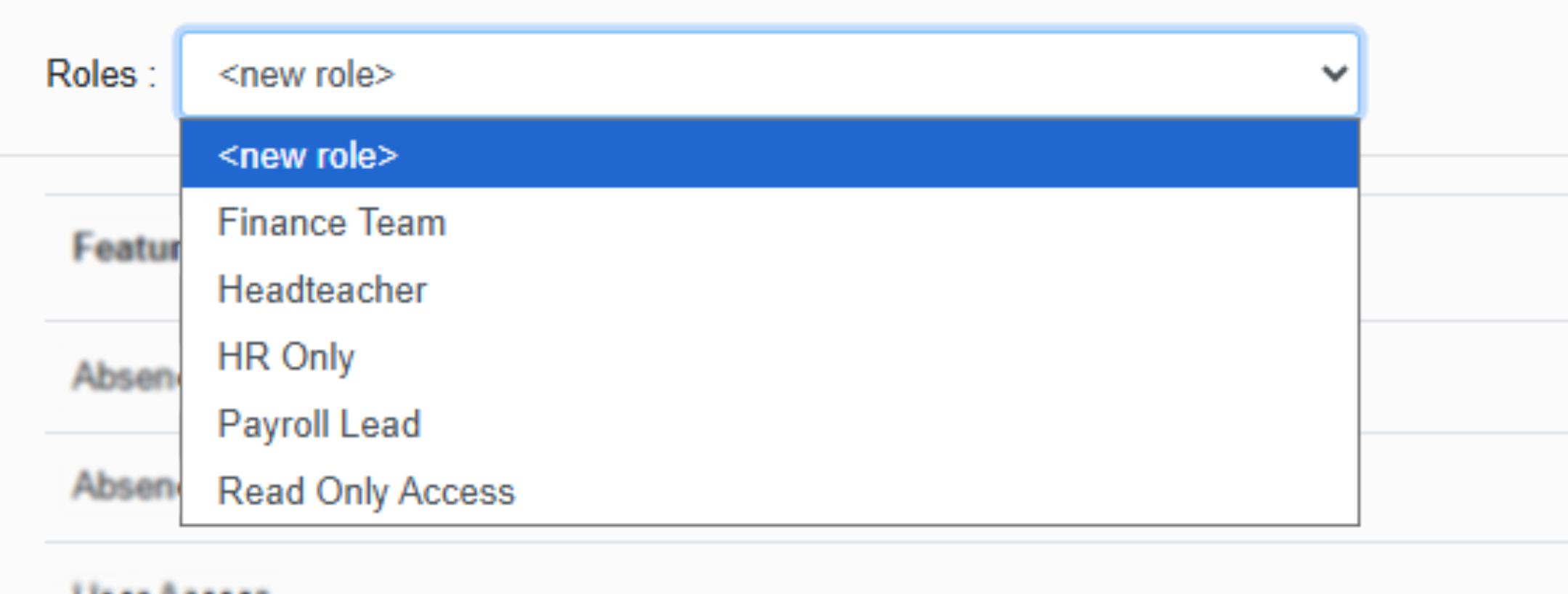
You can re-visit and amend your access roles at any time, by navigating to the 'Roles' drop down and finding any access template you have previously saved to your site:
Assigning Custom Access:
To assign one of your custom templates against a user
1. Click on the trust/school name at the top of your site:
2. Click the hyperlink on the default access level/template you have assigned them to (e.g. MAT Administrator), locate the user, then click the 'edit' icon:

3. Click the Access Rights drop-down menu and select the appropriate role you have created from the available drop down, then click the ‘Assign’ button:
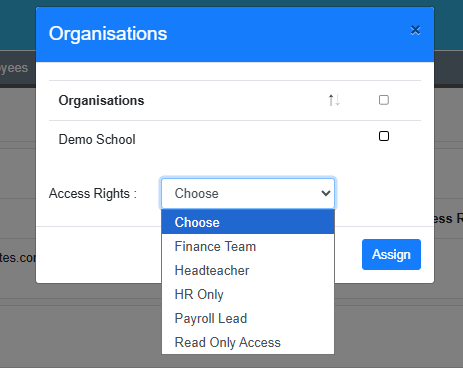
You can also specify the schools they have access to. If no schools are selected, it automatically grants access to all schools.
Was this article helpful?
That’s Great!
Thank you for your feedback
Sorry! We couldn't be helpful
Thank you for your feedback
Feedback sent
We appreciate your effort and will try to fix the article