Each month, when each school completes their final Pay Run for that month, a number is sent from EduPay to Tes.
This is referred to in this guide as the ‘charge value’, and it informs Tes how many employees/payslips each school has generated during the month.
This in turn determines the amount of the customers’ monthly invoice.
Customer report
The customer-level Invoice Audit report is located within the Reports main menu at MAT and School level:
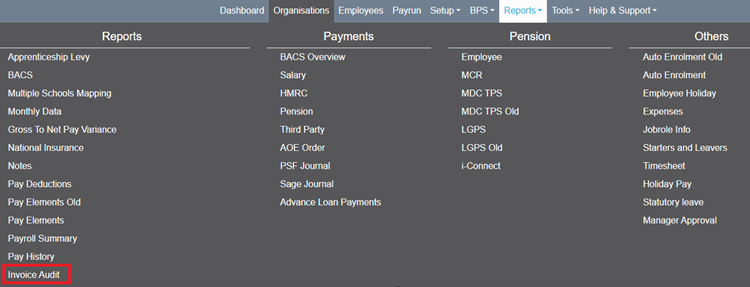
Invoice Audit Report Example
Below is an example of the report at MAT level. The School level report includes the same information, except it does not include the School column/filter.
(Note: The data in the grid will only populate when the charge value is sent to Tes. This should take place just after the final Pay Run of the month is complete.
Until this point, we do not know which employees/payslips will be charged for. Therefore, if the screen is opened on the first day of the month it is likely to be blank, as no Pay Runs will be complete at that point.)
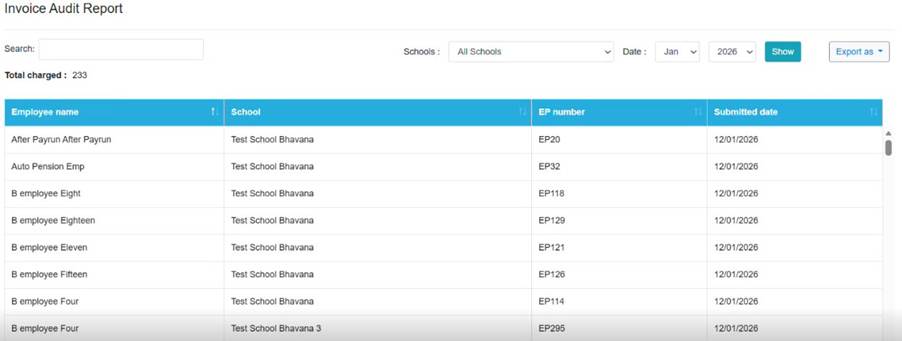
Breakdown of screen data:
- Search – this will search data stored in all columns in the grid and filter the information accordingly
- Schools filter – this is shown at MAT level only. It enables the user to focus the data on one selected school
- Date – this defaults to the current month, but enables the user to retrieve retrospective data
(Note: that this data has only been collected since October 2025. Any earlier date will return a ‘No data available’ message)
- Export As – the grid data can be exported to csv at any point
- Total charged – this is a count of all rows in the grid. At a school level, this value should equal the number of employees/payslips the customer sees on their invoice
- Grid columns:
- Employee name – this is a list of employees that make up the number of employees/payslips the customer has been charged for
- School – displayed on the MAT level report only
- EP Number – linked to Employee name
- Submitted Date – this is the date that the employee/payslip number is sent from EduPay to Tes
- This will be on, or just after, the date of the last Pay Run for the school
Access Rights for the Invoice Audit Report
Access to this screen is available is available to the following user templates:
- MAT Administrator
- Payroll Manager
- Administrator
- Super User
- Reseller Super Users
The Invoice Audit option is available under the Reports section of the Access Rights screen
(Note: Users who do not have a Role assigned have access to all features and screens in EduPay, including this new report)
Was this article helpful?
That’s Great!
Thank you for your feedback
Sorry! We couldn't be helpful
Thank you for your feedback
Feedback sent
We appreciate your effort and will try to fix the article