Option to Unauthorise Pay Runs
MAT Administrators will now have the option Unauthorise Pay Runs themselves, as long as certain trigger points have not been reached.
Where these users have an access template assigned to them, the option will need to be enabled in Access Rights, under the ‘Dashboard – Notifications’ option:
Access Rights can only be amended by Mat Administrators or alternatively reach out to our support team: edupay-support@tes.com
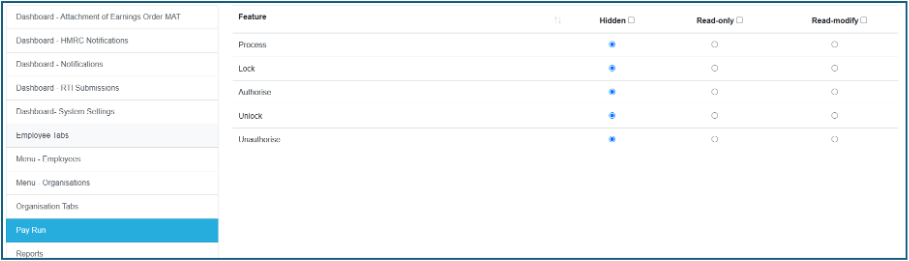
- Hidden or Read-only means the Unauthorise option will not be able to the user
- The option will be available to all Superusers and Reseller Superusers.
For users who have Read-modify access to this option, a new ‘Unauthorise’ button will be shown on the School level Pay Run screen against eligible Pay Runs:

There are strict criteria used to determine when the Unauthorise button is displayed:
- The user must have read-modify access to the function, and
- None of the BACS files for the Pay Run have been generated yet, and
- The FPS Submission for the Run has not been sent, and
- For Payroll Plus customers only, the Pay Run Customer Deadline day has not yet been reached
When a Pay Run is Unauthorised, all employees on that Run will have their status reverted to Open. This action will be recorded in the Activity Log.
Note that the Unauthorise button will not be displayed for Pay Runs linked to Active Schools (only Live).
New Status field in the Pay Run screens
To help users monitor which stage their Pay Run process is at, a new Status field has been added to the Pay Run screen. The information shown varies depending on whether the customer is Payroll Plus or not.
Non Payroll Plus customers
These customers will see a basic indicator displaying the Pay Run state:
Open

This Status is displayed if one or more of the employees in the selected Pay Run is unlocked
Locked

This Status is displayed if every employee in the selected Pay Run has been locked, but one or more of the employees have not been Authorised yet
Authorised

This Status is displayed when every employee in the Pay Run is Authorised.
The Status displayed depends on where the Pay Run screen is opened:
- MAT level – the Status reflects all employees assigned to that Pay Run across all schools in the MAT
- School level – the Status reflects all employees assigned to that Pay Run in the selected School only
Payroll Plus customers
As Payroll Plus customers have a Customer Deadline recorded in EduPay (5 working days before the Pay Run payment date) we are able to include more information to the Status field for these users.
Prior to Customer Deadline
The Status will be appended by the number of days left until the Customer Deadline (e.g. the day they need to Authorise the Pay Run):

Or

The days to deadline text is updated each day at midnight. For example:
- Payment is 16th June
- Customer Deadline is 9th June
- At 23:55 on 7th June it will display ‘2 days to deadline’
- At 00:05 on 8th June it will display ‘1 day to deadline’
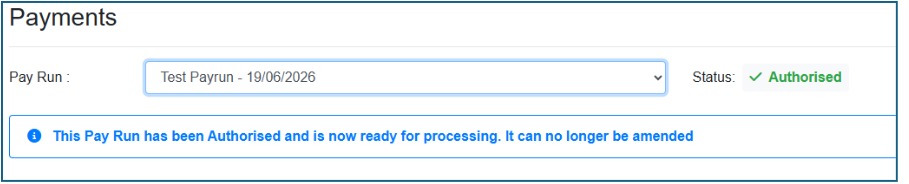
When the Pay Run is Authorised the Status will update:

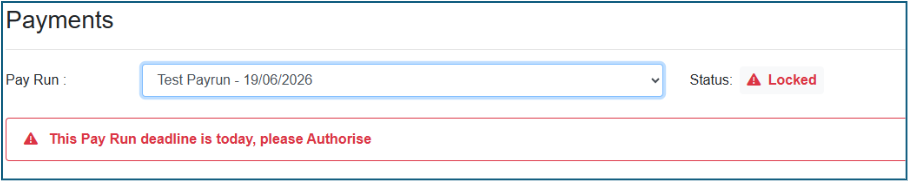
On the Customer Deadline Day
If the Pay Run does not have an Authorised Status, the following message will be displayed:
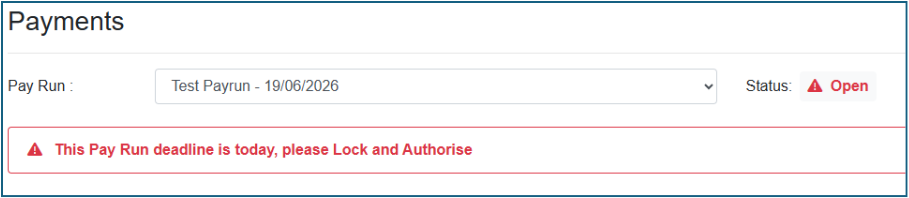
Or:
When the Pay Run is Authorised this will update to:
After the Customer Deadline Day
Although EduPay sets a Customer Deadline of 5 working days before the payment date, the Payments team are still able to process the BACS files up to 3 working days before payment date. Therefore, we have added messaging that updates during this period.
First working day after the Customer Deadline
If the Pay Run is not Authorised the following message will be displayed:

Or

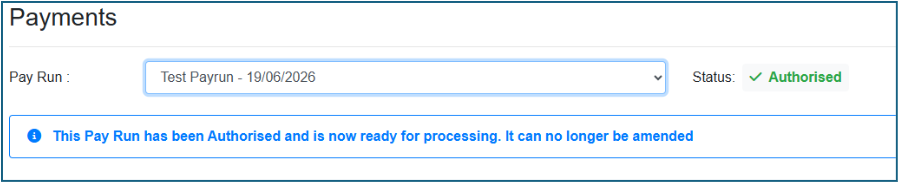
When the Pay Run is Authorised this will update to:
Second working day after the Customer Deadline
If the Pay Run is not Authorised the following message will be displayed:

Or

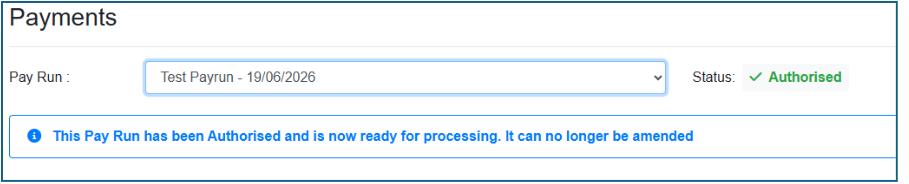
When the Pay Run is Authorised this will update to:
More than two working days after the Customer Deadline
If the Pay Run is not Authorised the following message will be displayed:

Or

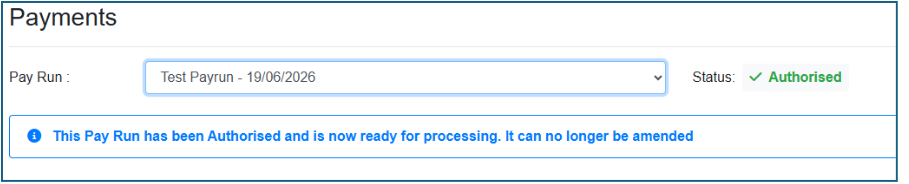
When the Pay Run is Authorised this will update to:
New indicators on Dashboards
A new Pay Run deadline indicator has been added to School and MAT level Dashboards. This shows the status of the next nearest Pay Run to the current date. The data shown is different depending on whether the customer is Payroll Plus or Non-Payroll Plus.
Non-Payroll Plus customers
The new indicator is shown at MAT and School level:

For Non-Payroll Plus customer, the countdown will show the number of days until the Payment Date of their nearest Pay Run. This will count down until the actual Payment Date, at which point ‘Today’ will be shown. Once the Payment Date has passed, the indicator will start counting down to the next Pay Run’s Payment Date.
At MAT level, the indicator will focus on Pay Runs linked to the MAT. At School level, the indicator will focus on Pay Runs linked to the School.
The number of days displayed will be colour coded:
- If one or more employees in the Pay Run are not Authorised the text will be red
- If all or more employees in the Pay Run are Authorised the text will be green
If the customer has more than one Pay Run with the same Payment Date, the text colour will be determined by the Pay Run in the earliest state of completion.
Payroll Plus customers
The new indicator is shown at MAT and School level:
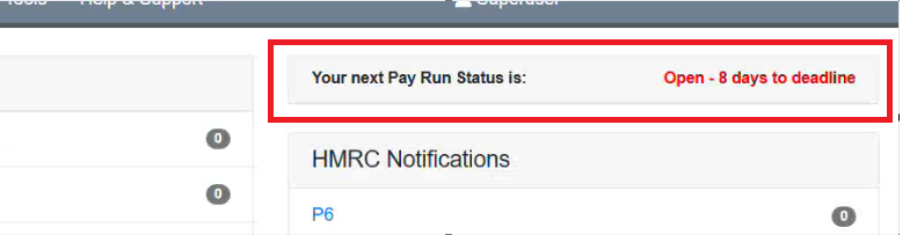
For Payroll Plus customer, the countdown will show the number of days until the Customer Deadline of their nearest Pay Run. This will count down until the actual Customer Deadline date, at which point ‘Today’ will be shown. Once the Customer Deadline has passed, the indicator will start counting down to the next Pay Run’s Payment Date.
At MAT level, the indicator will focus on Pay Runs linked to the MAT. At School level, the indicator will focus on Pay Runs linked to the School.
The Status and text colour will depend on the progress of the Pay Run:
- Open (red) - This Status is displayed if one or more of the employees in the selected Pay Run is unlocked
- Locked (red) - This Status is displayed if every employee in the selected Pay Run has been locked, but one or more of the employees have not been Authorised yet
- Authorised (green) - This Status is displayed when every employee in the Pay Run is Authorised.
If the customer has more than one Pay Run with the same Payment Date, the text colour will be determined by the Pay Run in the earliest state of completion.
New Pay Run status indicator on Dashboard
A new option has been added to the MAT and School level Dashboards in the Notifications section:
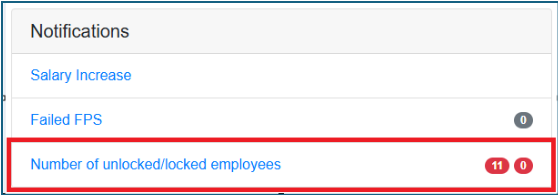
This displays two badges containing values:
- The first badge shows the number of Open (unlocked) employees in all Pay Runs for the month for that MAT/School
- The second badge shows the number of Locked employees in all Pay Runs for the month for that MAT/School
The values are also colour coded:
- Where one or more employees in all Pay Runs for the MAT/School are Open, the badges will have a red background
- Where all employees in all Pay Runs for the MAT/School are Locked, but at least one of these employees is Unapproved, the badges will have a grey background:

- Where all employees in all Pay Runs for the MAT/School are Approved the badges will have a green background:

The functionality is available to the following user types:
- MAT Administrator
- Administrator
- MAT Payroll Manager
- Payroll Manager
Where these users have an access Template assigned to them, the option will need to be enabled in Access Rights, under the ‘Dashboard – Notifications’ option:
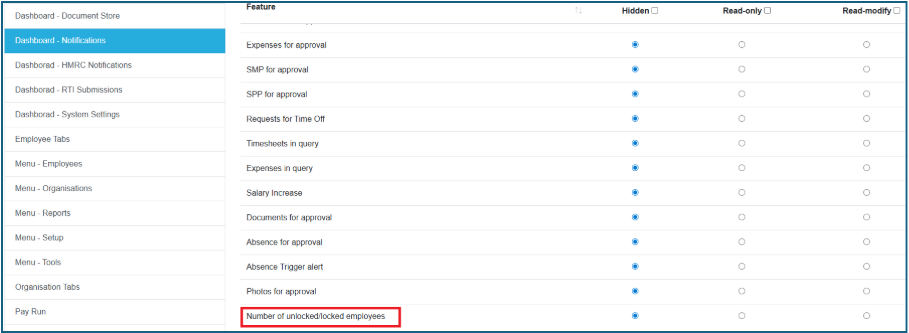
- Hidden means the new notification option will not be shown at all
- Read-only means the option is displayed
- Read-modify will enable the user to click on the ‘Number of unlocked/locked employees’ text in the Dashboard Notifications section to be taken to the MAT/School Pay Run screen
Other changes
Employees will continue to be shown in the Pay Run screen after the Run has been authorised. Previously these details were removed as soon as the Run was authorised.
- This enables users to review their data after authorisation
- It allows shows eligible MAT Administrators to check which employees will be Unauthorised
- The data will update to the new month as soon as the FPS Submission for the Run is made
The ‘Pay Now’ button has been updated to ‘Authorise’ on the Pay Run and One Off Payment screens.
Was this article helpful?
That’s Great!
Thank you for your feedback
Sorry! We couldn't be helpful
Thank you for your feedback
Feedback sent
We appreciate your effort and will try to fix the article