Choosing the employee onboarding option allows the employee to onboard themselves – you simply need to add in their basic information.
To begin onboarding a new employee, go to the appropriate school in EduPay, ensuring you’re on the school level (blue bar).
Click on the Employees tab, where you’ll find a list of your current employees.
1. To add your new starter, click on the ‘Add Record’ green button in the top right-hand corner.

2. You will be asked which type of record you wish to add to your EduPay. For new employees, this will be 'Employee on payroll'
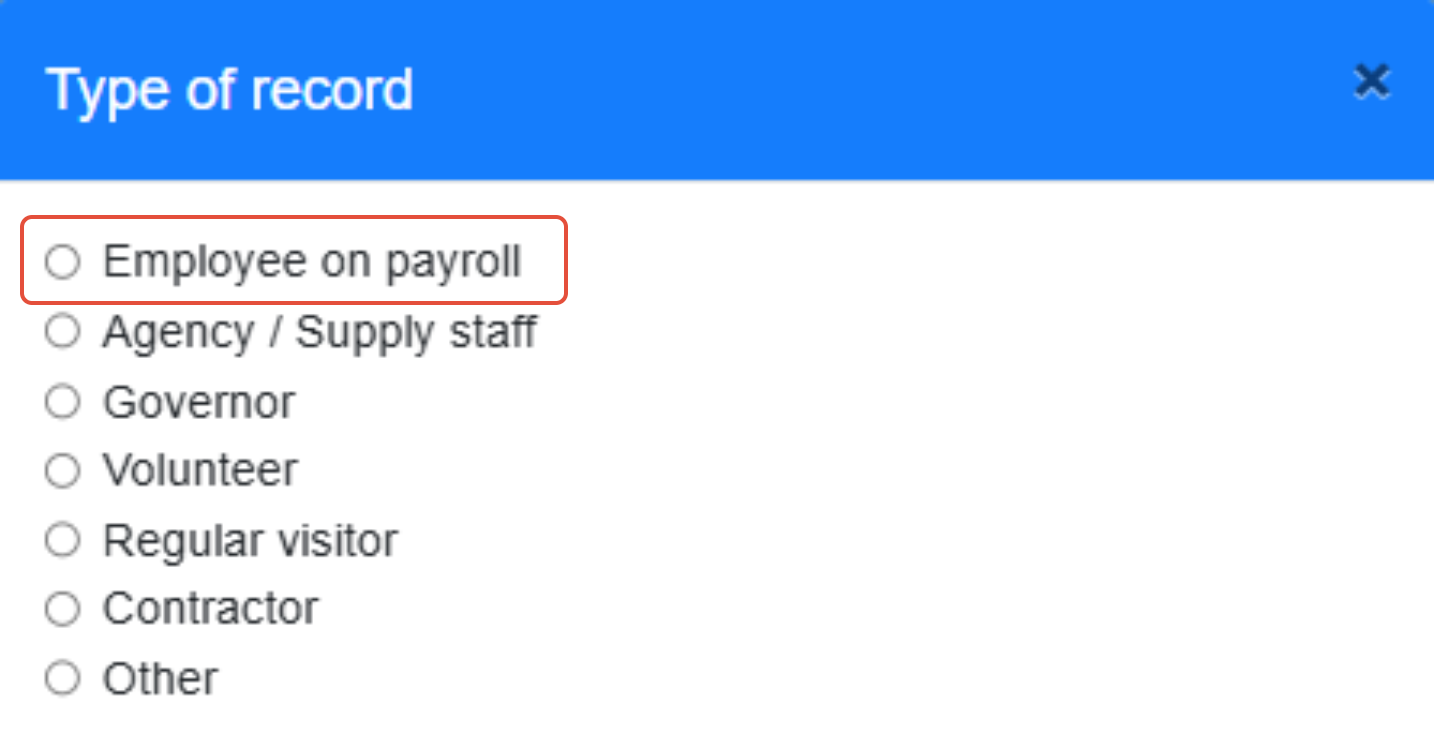
NOTE: The other types of record link to different record types you may need to keep logged in EduPay for the purpose of completing your Single Central Record each year.
You will need to specify if the employee has a current P45, as this will determine what information EduPay will request from the employee when completing their own employee onboarding forms.
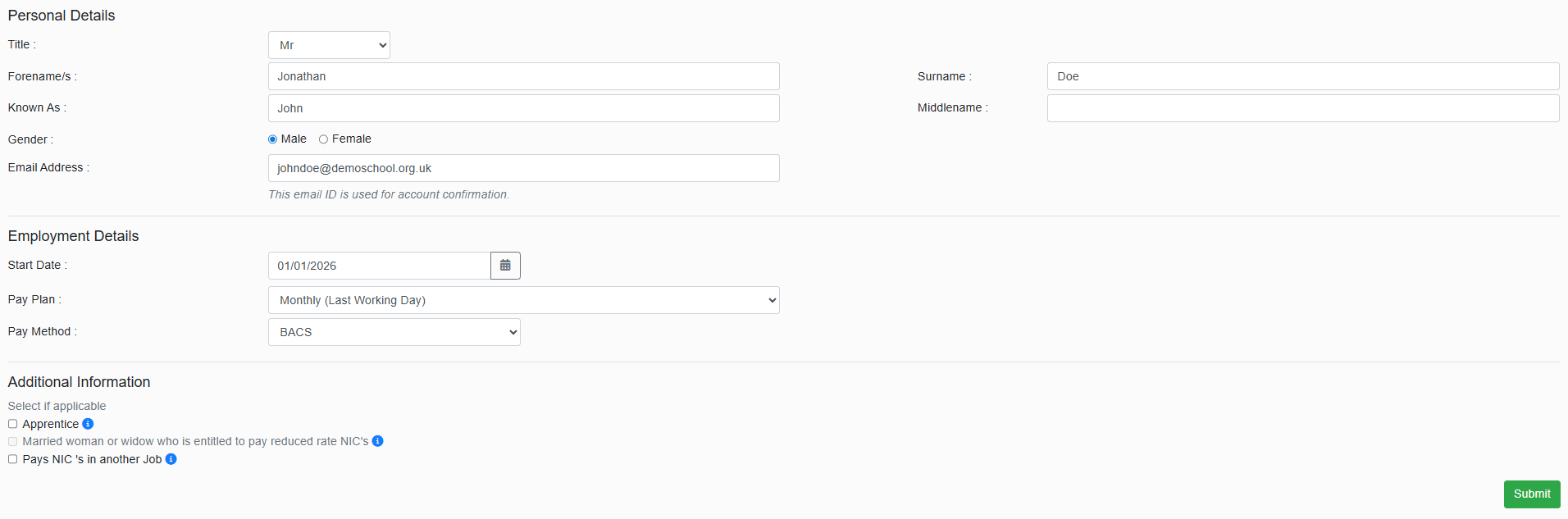
3. Without a P45: You will need to input the basic information required to get their record set up in EduPay:
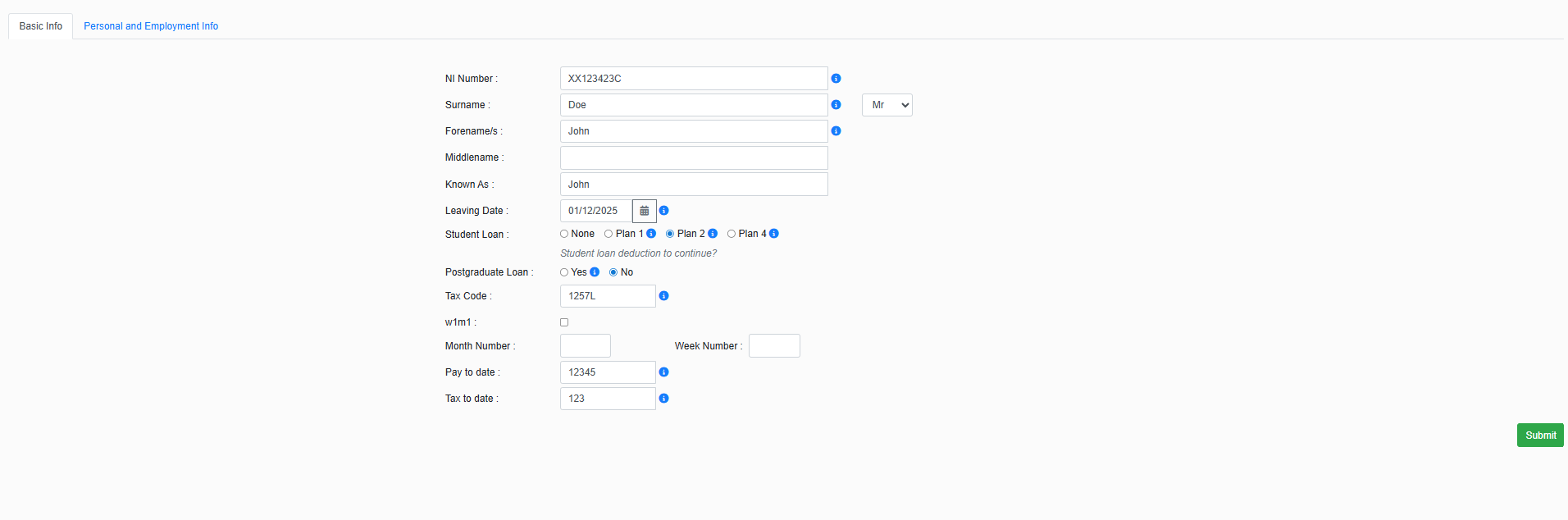
3. With a P45: If you have indicated that you have a current P45 for this employee, the system will request that you input the details from the P45 as part of the employee onboarding process:
After this, it will ask you for the same brief areas of personal information to get their record set up:
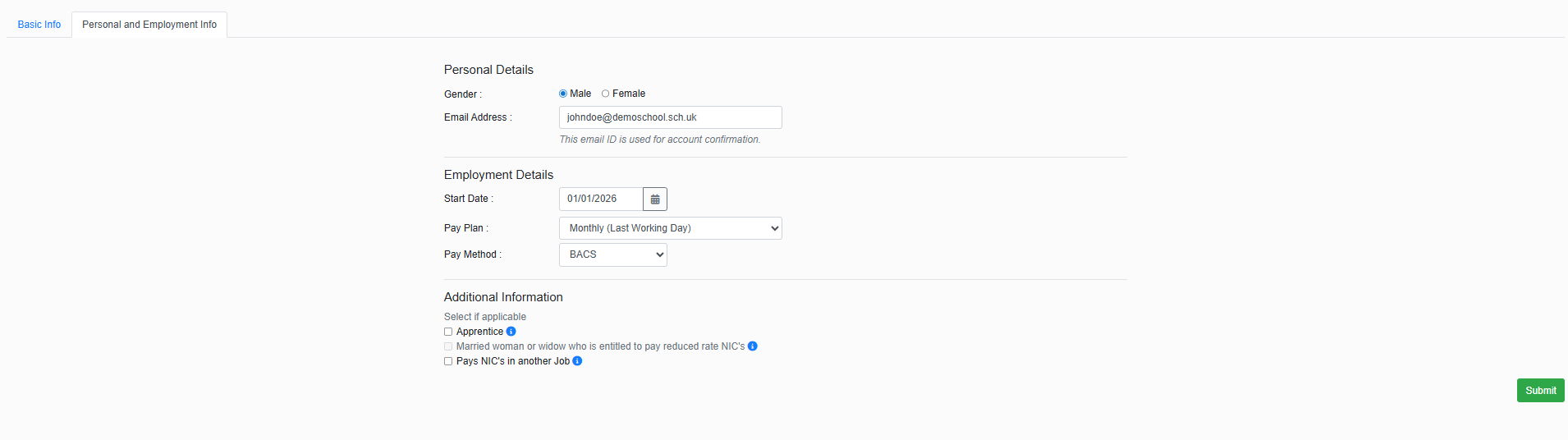
NOTE: The additional information section relates to different criteria that could impact National Insurance - there are small information icons to provide more details on these - if you do not believe any apply, you can leave this section blank.
Clicking "Submit" will send an email out to your new employee to the email address you have inputted - when they log in through this link, it will prompt them to begin their Employee Onboarding process.
4. The system will give you information on the temporary tax and national insurance basis based on the information it has received (Once an employee completes this onboarding, this is subject to change)
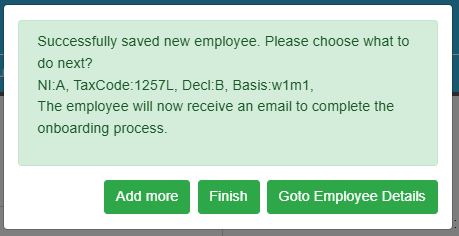
This will create their record in EduPay, and their personal details will automatically update once the employee has completed their onboarding - there is no need for you to manually complete any personal detail fields.
NOTE: This will also create a record for them in BPS, which is available for you to input all contract details in advance while you wait for the employee onboarding to be complete. There is separate guidance on this here.
How will this look for an employee?
When you submit your employee onboarding form, your employee will receive an email to the relevant email address (this is the same email every employee will see when they receive their email confirmation):
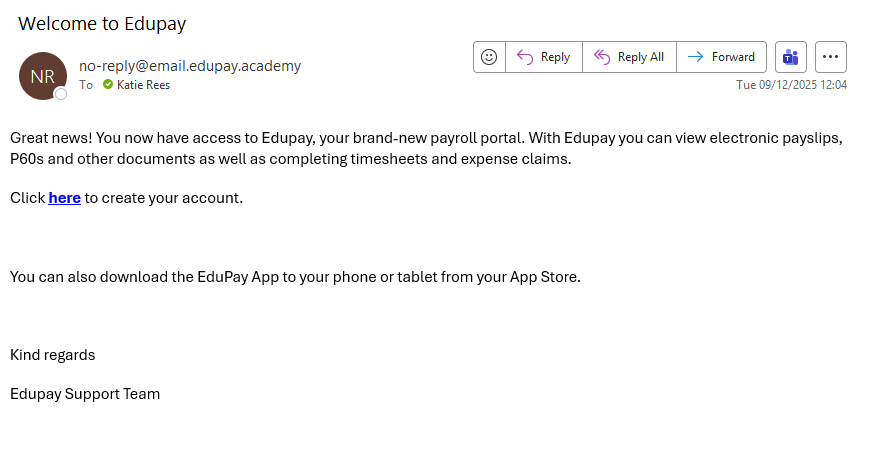
When they click the link, they will be prompted to create their username (which is their email address by default) and password for their payslip portal:
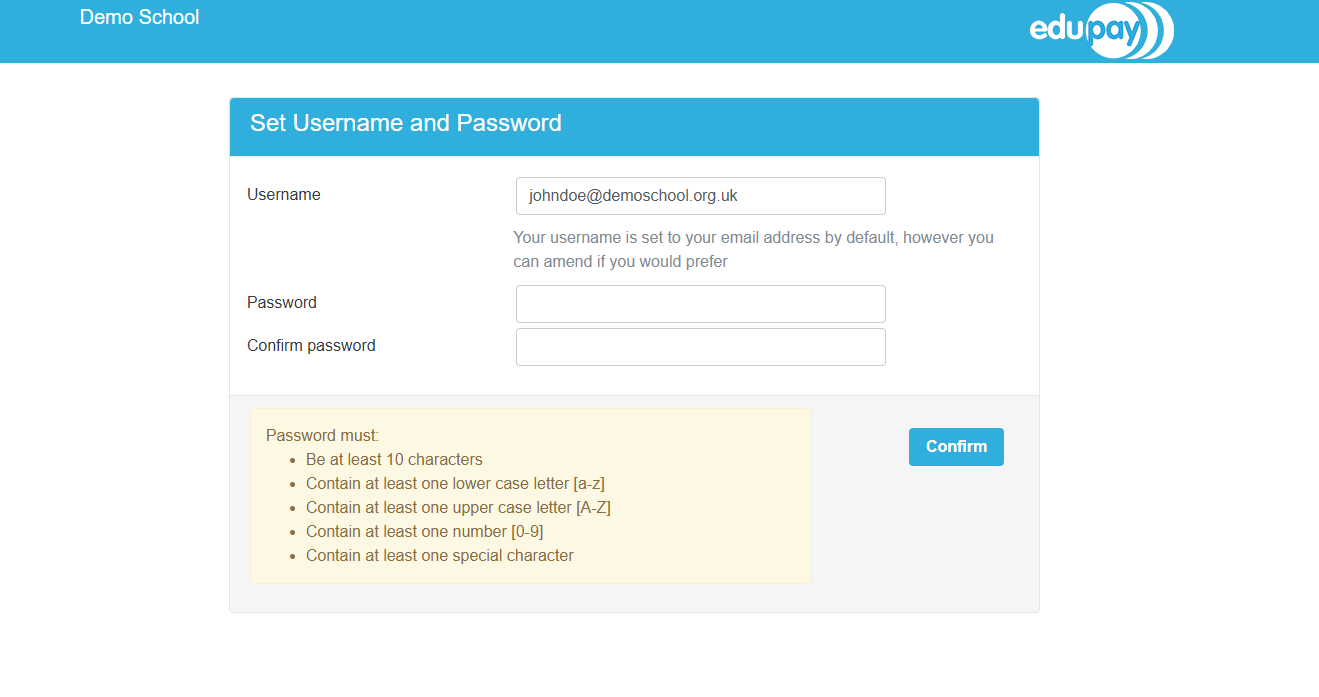
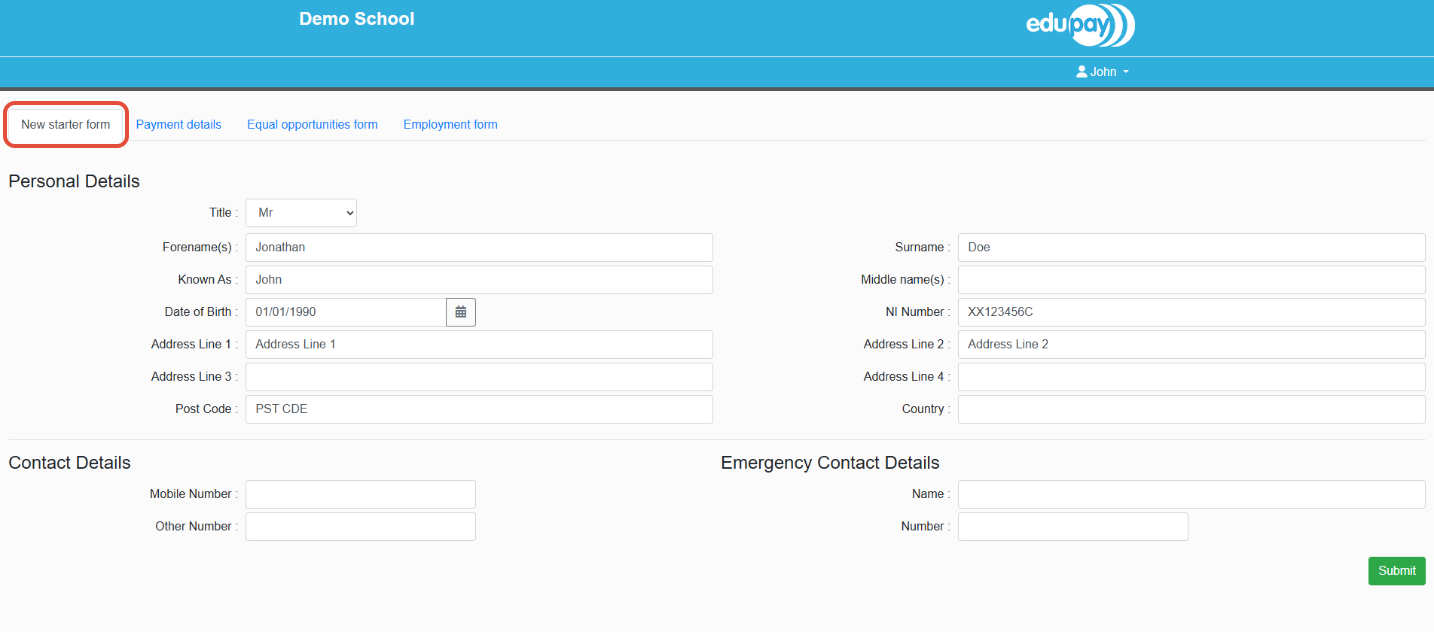
Once they create their username and password, they will be prompted to begin the "Employee Onboarding" process, inputting all personal, payment, and employment information:
1. New starter form (All required fields are as inputted below - but additional optional fields for contact numbers and emergency contacts can be inputted)
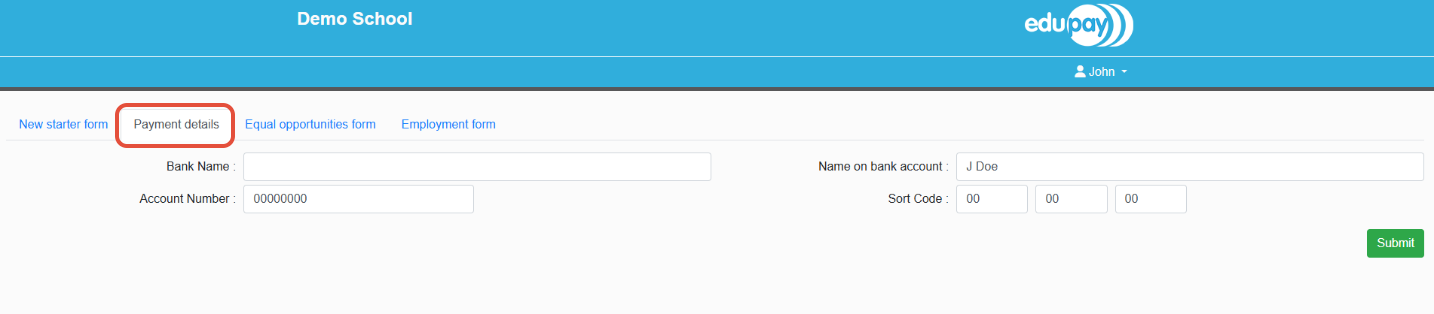
2. Payment details (Pay Run is included in the employer forms, so this is just bank account details)
3. Equal Opportunities form
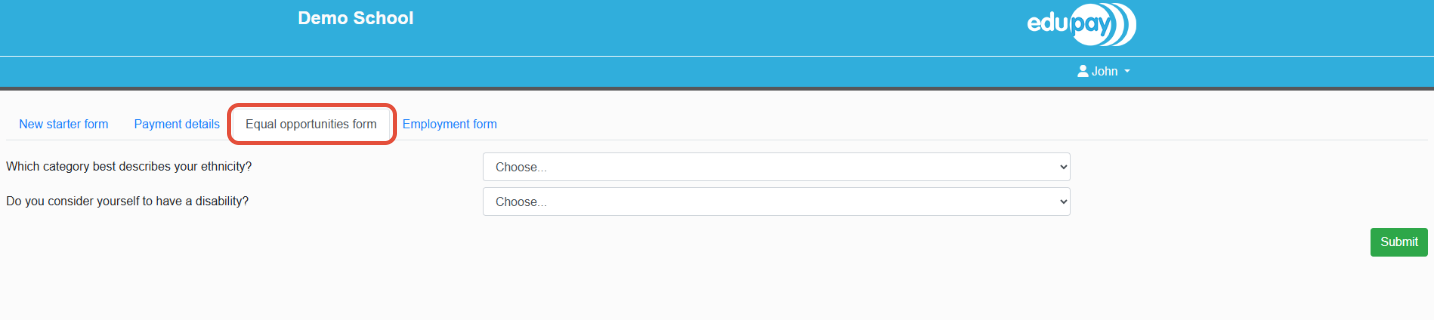
NOTE: In order to be used in other areas of the HR modules, the "Equal Opportunities form" is required as part of the Employee Onboarding process - this is not required for manual onboarding or payroll processing.
4. Employment Form (Without a P45) - If you have indicated that you do not have a P45 for your employee, the system will require them to complete the employment form as part of the New Starter Checklist.
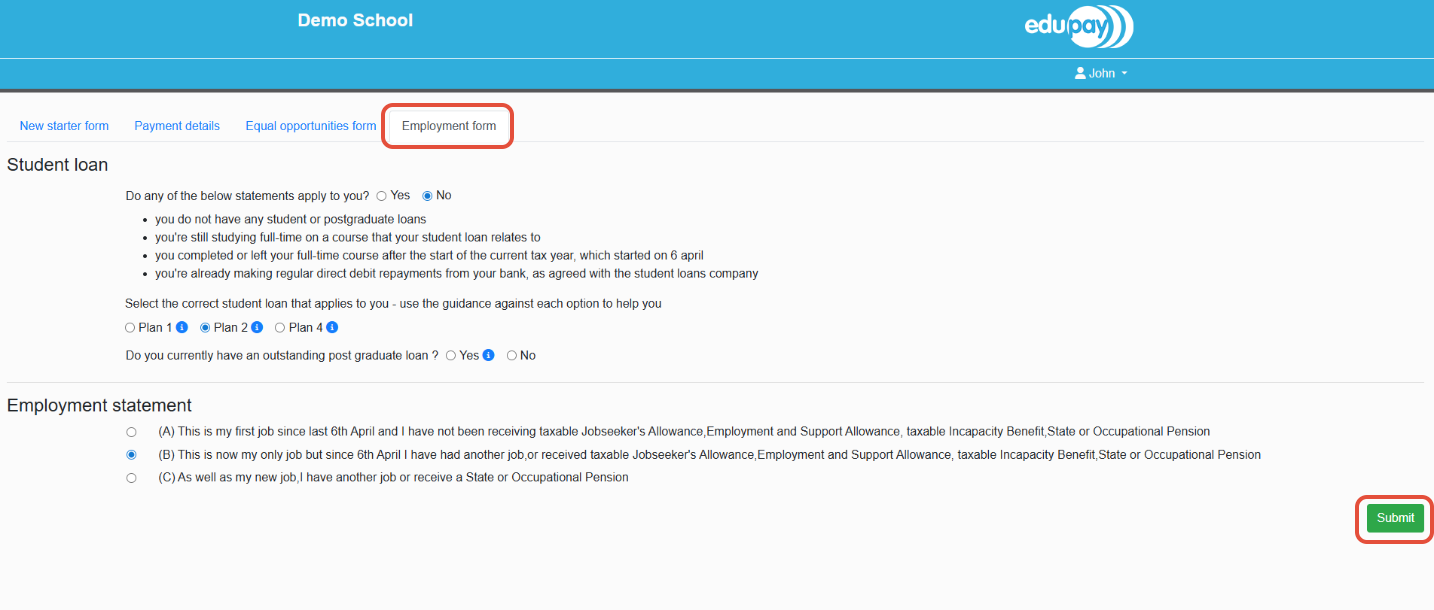
Once completed, the employee will be able to click the green "Submit" button below. If any mandatory fields are missing in any tab, this will flag for the employee, and they will not be able to proceed until all mandatory fields are completed.
Was this article helpful?
That’s Great!
Thank you for your feedback
Sorry! We couldn't be helpful
Thank you for your feedback
Feedback sent
We appreciate your effort and will try to fix the article