To add a new Pay Scale to your BPS site the first step is to login to the central side and also be either a 'BPS Role' or 'Edupay Admin' user already setup in BPS.
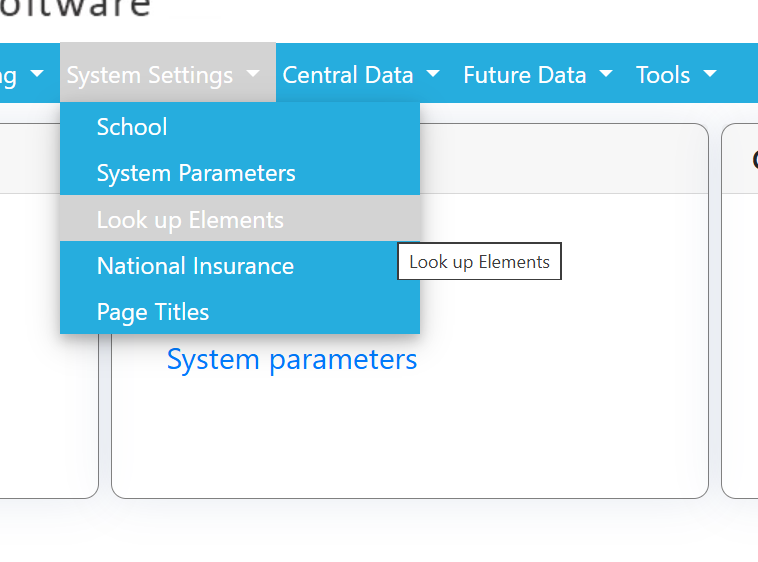
Then on the central side go to system settings --> Look up elements.
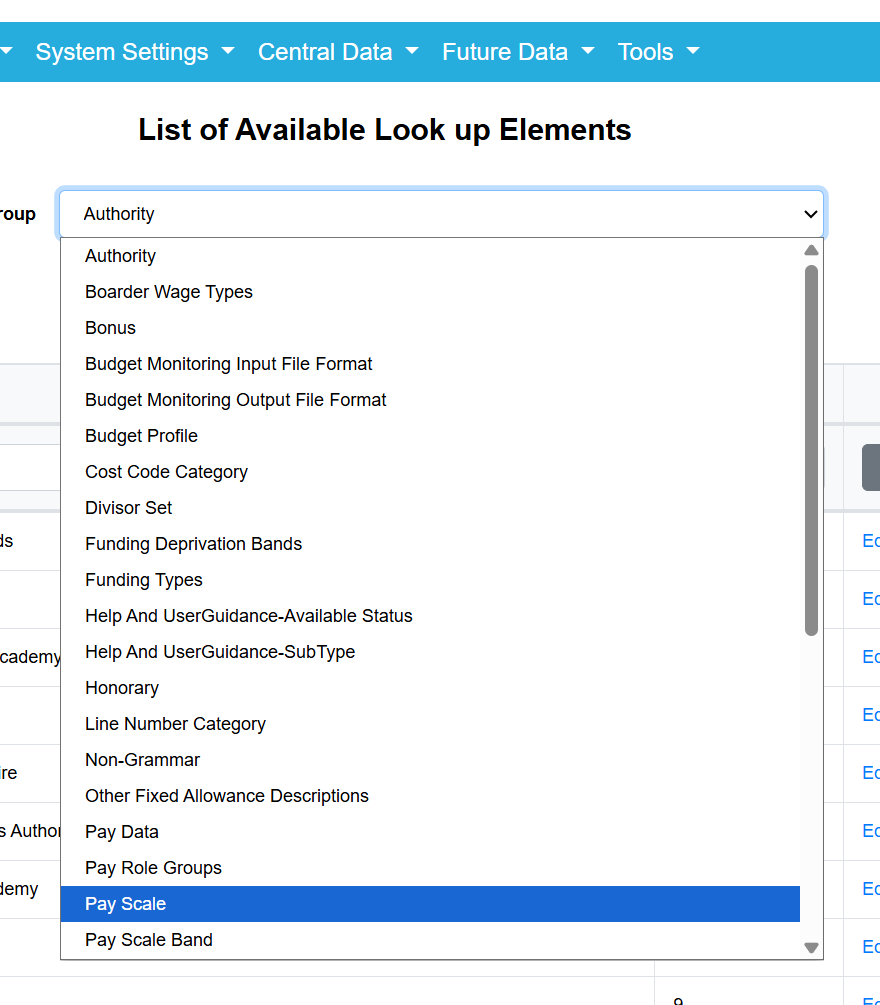
In system settings you will see a drop down list, choose Pay Scale from the list and click "add Pay Scale"
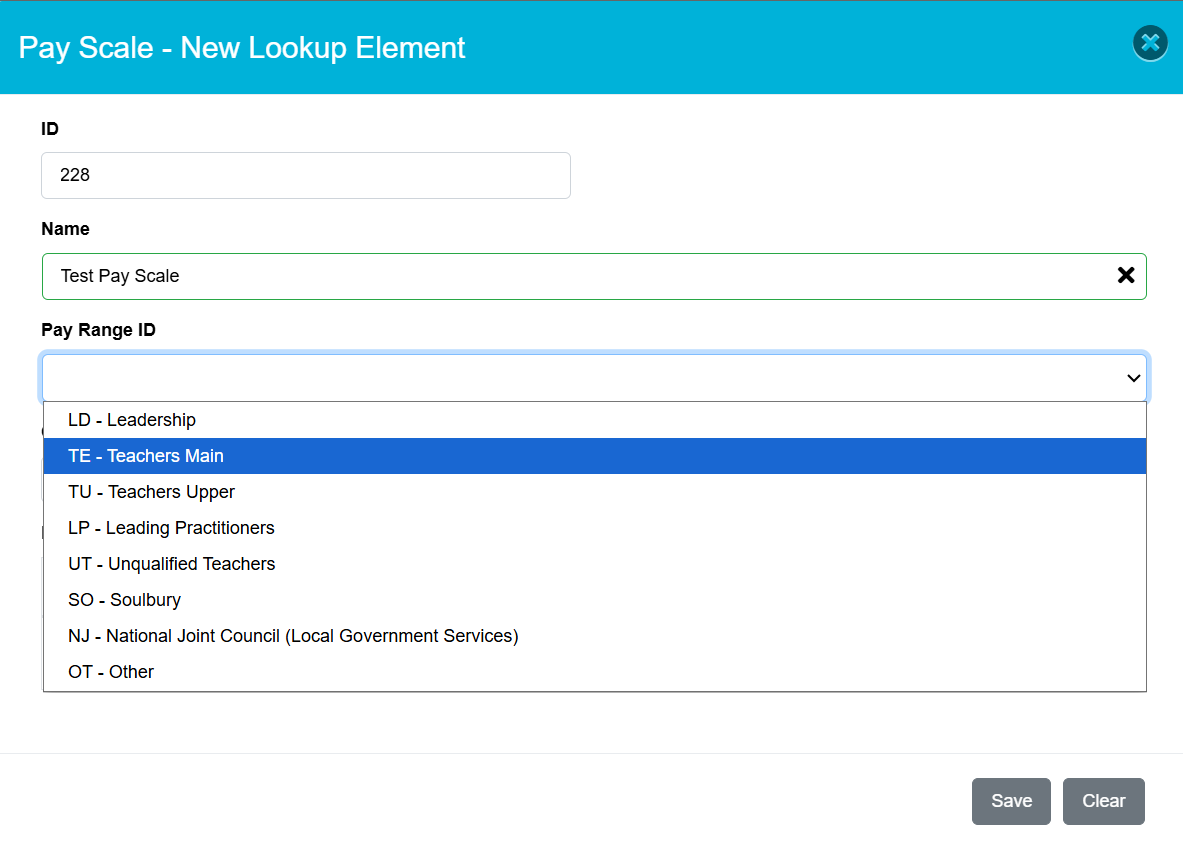
You will be greeted by a popup box like below, simply enter the name of the scale and the pay range ID from the drop down list (this ID is used in the Work Force Census)
Then finally Save when you are happy with the name and ID.
Now the Pay Scale has been created we need to add the scale points, to do this go to central data --> Pay Elements --> Pay Scales, then find the new Pay Scale in the drop down list.
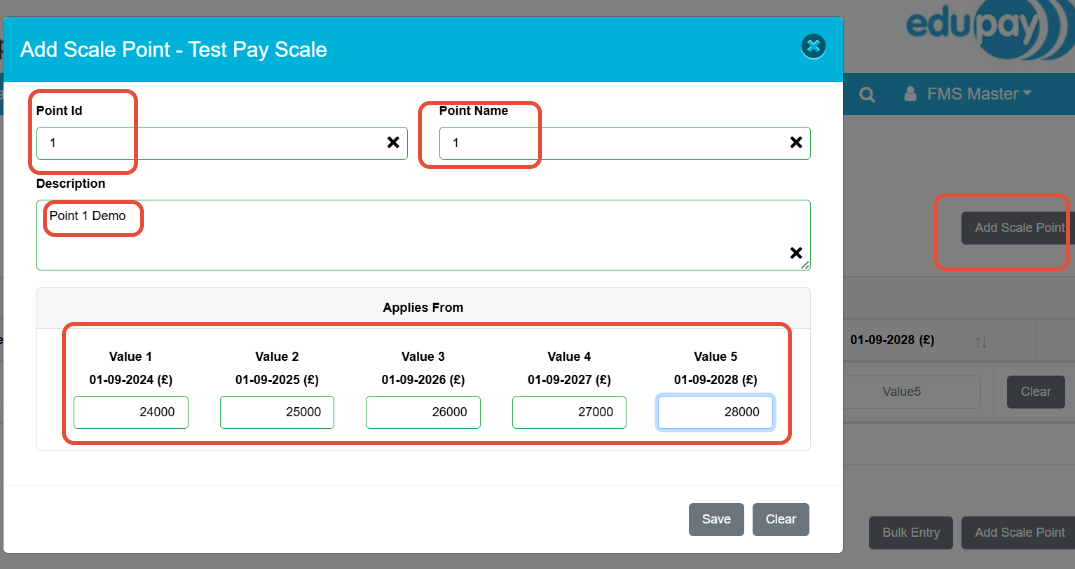
Click Add Scale Point on the top right and add the number of points you need aswell as the monetary values behind the point like below.
Point 1 example:
Was this article helpful?
That’s Great!
Thank you for your feedback
Sorry! We couldn't be helpful
Thank you for your feedback
Feedback sent
We appreciate your effort and will try to fix the article